
To start a YouTube TV customer service chat on iPhone, open the YouTube TV app, tap your profile photo, tap Help, then scroll to “Need more help?” and tap Contact us. Pick YouTube TV, describe your problem in a few words, tap through the suggested articles, and choose Chat to message a live support agent.
The whole process takes about two minutes. The one thing that trips most people up is being signed in to the wrong Google account, so this guide also covers why the chat button sometimes doesn’t show up, what to do if you pay through Apple or a carrier, and how to get your issue solved in one chat instead of three.
Quick Overview
- Open the YouTube TV app (not the regular YouTube app) on your iPhone.
- Tap your profile photo in the top corner.
- Tap Help.
- Under “Need more help?”, tap Contact us.
- Select YouTube TV or NFL Sunday Ticket.
- Type a short description of your issue and tap Next step.
- Skip past the suggested help articles by tapping Next step again.
- Choose Chat to talk to a live agent, or call +1 833-389-2054.
| Support option | Where to find it | Best for |
| Live chat | App: Profile photo > Help > Contact us > Chat | Billing questions, account issues, getting a written record |
| Phone | +1 833-389-2054 | Urgent problems, pausing or changing your plan |
| Email (when offered) | Same Contact us flow | Non-urgent issues, replies usually within 24 hours |
| Send feedback | Profile photo > Send feedback | Reporting bugs; you may not get a reply |
How Do You Start a YouTube TV Live Chat in the iPhone App?
You start a live chat from the Help menu inside the YouTube TV app. Here are the full steps, with what you’ll see on each screen.
Step 1: Open the YouTube TV app and sign in
Make sure you are using the YouTube TV app, which has a red TV-shaped icon. The regular YouTube app has its own help menu, and it will not connect you to YouTube TV agents. The YouTube TV app on the App Store requires iOS 16 or later, so update your iPhone first if the app won’t install or open.
Check that you are signed in to the same Google account that pays for YouTube TV. If you have a personal Gmail and a work account on your phone, this is the most common reason the support options look different than expected.
Step 2: Tap your profile photo, then tap Help
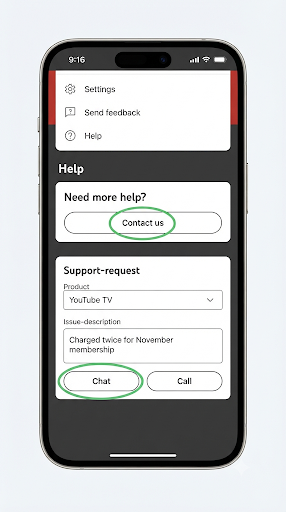
Your profile photo sits in the top corner of the app. Tap it, and a menu opens with options like Settings, Send feedback, and Help. Tap Help.
Step 3: Tap Contact us under “Need more help?”
Scroll to the bottom of the Help screen. Under the heading “Need more help?”, tap Contact us. This opens the support request form.
Step 4: Choose your product and describe the issue
Select YouTube TV (or NFL Sunday Ticket if your question is about that add-on). Then type a short, specific description. For example:
- “Charged twice for November membership”
- “Want to pause my plan for 3 months”
- “Local channels missing after I moved”
- “Live TV keeps buffering on all devices”
Tap Next step.
Step 5: Review or skip the suggested articles
YouTube TV will show a few help articles that match your words. Give them a quick look, because some simple fixes really are there. If none of them solve the problem, tap Next step again.
Step 6: Tap Chat to connect with an agent
You’ll now see your contact choices. Tap Chat to open a messaging window with a YouTube TV support specialist. Depending on your issue and current demand, you may also see options to call or send an email. Google lists these same steps on its official Get support for YouTube TV page.
Tip: Keep the app open while you wait. If you switch apps for too long, the chat session can time out and you may have to start over.
Can You Get YouTube TV Chat Support Through Safari Instead?
Yes. If the app is crashing or won’t load, you can reach the same chat from Safari or any mobile browser.
- Open Safari and go to the YouTube TV Help Center at support.google.com/youtubetv.
- Sign in with the Google account that has your YouTube TV membership.
- Scroll down and tap Contact us.
- Follow the same prompts: choose YouTube TV, describe the issue, tap Next step, and choose Chat.
The browser route is also handy for billing changes. Some membership settings, like pausing or canceling, are easier to manage from tv.youtube.com in a browser than inside the iPhone app.
Why Is the YouTube TV Chat Option Not Showing on My iPhone?
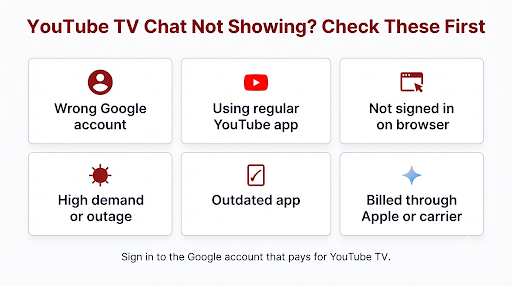
The chat option usually disappears for one of a few fixable reasons. Run through this list before you give up.
| What’s happening | Why it blocks chat | How to fix it |
| Wrong Google account | Support options are tied to the account with the membership | Tap your profile photo, switch accounts, and try again |
| Using the regular YouTube app | It routes to general YouTube help, not YouTube TV | Open the separate YouTube TV app |
| Not signed in on the browser | Contact us only works for signed-in users | Sign in at the top of the Help Center page |
| High demand or outage | Chat may be limited during big events or service problems | Try again later or call +1 833-389-2054 |
| Outdated app | Older versions can show broken menus | Update YouTube TV in the App Store |
| Billed through a partner | Some billing changes must go through your provider | Contact your carrier, internet provider, or Apple |
If you have lost access to the Google account itself, YouTube TV can’t verify you, and chat won’t help much. Recover the account first. Our guide on contacting Google support for Gmail account recovery walks you through that process step by step.
Who Should You Contact If You Pay for YouTube TV Through Apple or a Carrier?
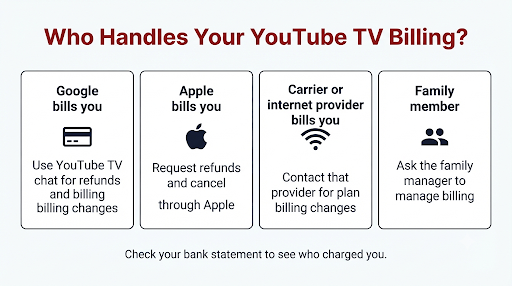
Check who bills you before you start a chat. It can save you a wasted conversation.
If you subscribed through Apple (App Store billing)
If your bank statement shows “apple.com/bill,” your membership runs through Apple. YouTube says it can’t grant refunds for purchases made through Apple billing, so refund requests go to Apple instead. You can request a refund through Apple’s Report a Problem page, and you can cancel from your iPhone by going to Settings > your name > Subscriptions.
YouTube TV chat can still help with things like streaming errors, missing channels, or location problems, even if Apple handles your billing.
If you subscribed through a phone carrier or internet provider
Some people get YouTube TV through a bundle or promo from their wireless or home internet provider. In that case, plan changes and billing questions often need to go through that provider’s customer support. Technical problems with the app can still go to YouTube TV.
If you’re a family member, not the family manager
Only the family manager can change billing, pause, or cancel the membership. If you are a family member, you can still ask support about playback or channel issues, but money-related requests should come from the person who manages the plan.
What Can YouTube TV Chat Support Actually Help With?
YouTube TV chat agents can handle most account, billing, and technical problems. Common requests include:
- Billing errors: double charges, unexpected price increases, or a failed payment
- Refund requests: for service outages or billing mistakes (if Google bills you directly)
- Plan changes: pausing, canceling, or switching plans and add-ons
- Location issues: wrong local channels or “home area” errors after a move
- Playback problems: buffering, freezing, or error codes that persist across devices
- DVR and recordings: missing recordings or library problems
- NFL Sunday Ticket: access, purchase, and streaming questions
Chat is also where agents sometimes mention retention offers, especially if you say you are thinking about canceling because of the price. There is no guarantee, but it costs nothing to ask.
How Can You Get Faster Help in a YouTube TV Chat?
The fastest chats are the ones where the agent has everything up front. Before you tap Chat, gather these details:
- The email address on your YouTube TV account
- The date and amount of any charge you’re asking about
- The device you’re using (for example, iPhone 15 on iOS 18)
- Any error code or message, word for word
- What you’ve already tried, like restarting or reinstalling
Share “Stats for nerds” debug info for playback problems
This is a step most guides skip, and it can cut a technical chat in half. For buffering or video quality issues, YouTube TV can read your debug info directly:
- Play any video in the YouTube TV app.
- Tap More on the player.
- Tap the Stats option.
- Tap Copy debug info.
- Paste it into your support chat.
Google’s own help page on sharing debug info with YouTube TV Support confirms this works through chat or email.
Take screenshots before the chat ends
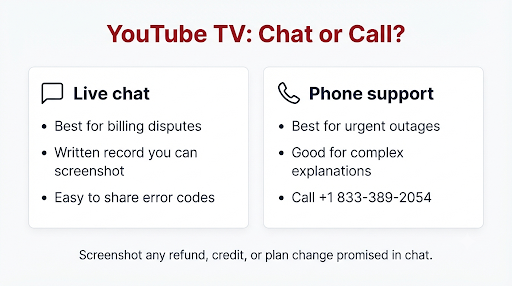
If an agent promises a credit, a refund, or a plan change, take a screenshot of that message on your iPhone (press the side button and volume up together). Chat transcripts are not always emailed to you, and a screenshot gives you proof if the change doesn’t show up on your next bill.
Is It Better to Chat or Call YouTube TV Support?
It depends on your issue. Chat is usually better for billing disputes and anything you want in writing. Phone is usually better when the problem is urgent, like losing live TV right before a big game.
| Live chat | Phone (+1 833-389-2054) | |
| Written record | Yes, you can screenshot it | No |
| Multitasking | Easy, type while doing other things | Harder, you need to stay on the line |
| Getting to a person | Direct to an agent after the form | An automated assistant may screen your call first |
| Sharing error codes or links | Copy and paste | Read aloud |
| Best for | Refunds, billing, account changes | Urgent outages, complex explanations |
If you contact other streaming services often, you’ll notice the process is similar. Netflix, for example, also routes you through an in-app help menu, which we cover in our guide on how to contact Netflix customer service from the Netflix app.
What Common Mistakes Should You Avoid?
- Calling numbers from random websites. Many sites list fake “YouTube TV support” numbers. The official number is +1 833-389-2054, and it appears on tv.youtube.com and Google’s help pages. Real YouTube TV support is free. Anyone asking you to pay for help or buy gift cards is a scammer.
- Sharing your password in chat. A real agent will never ask for your Google password or a 2-Step Verification code.
- Writing vague issue descriptions. “Not working” leads to generic articles. “Error: Playback failed on iPhone, all channels” gets you to the right help faster.
- Asking YouTube TV for an Apple refund. If Apple bills you, Apple handles the refund.
- Ignoring outages. If everyone is having the same problem, a chat won’t fix it faster. Check a status site like Downdetector or the r/youtubetv community first.
The same scam warning applies across social and streaming platforms. If you’ve ever had trouble with another app’s support, like getting help for a disabled Instagram account, stick to official in-app routes. Here’s how that works in our guide to contacting Instagram support about a disabled account.
Frequently Asked Questions
Is YouTube TV customer service chat free on iPhone?
Yes. Live chat through the YouTube TV app or Help Center costs nothing. You only need an active Google account signed in to YouTube TV. Avoid any third-party site or app that charges to “connect” you to an agent.
Is YouTube TV chat support available 24/7?
YouTube TV advertises that its support team is available 24/7. That said, the chat option can be limited during very high demand, such as major outages or big sports events. If chat isn’t available, try the phone line or check back in an hour.
Can I chat with YouTube TV without an active membership?
You need to be signed in to a Google account to use Contact us. If your membership has ended, sign in with the account you used before. Support options can vary, so if chat doesn’t appear, the phone line is your backup for questions about past charges or rejoining.
Does YouTube TV chat work on iPad too?
Yes. The steps on iPad are the same as on iPhone: profile photo, Help, Contact us, then Chat. The app requires iPadOS 16 or later.
Can I get a refund through YouTube TV chat?
You can request one if Google bills you directly. Agents may offer credits for outages or billing errors, but refunds aren’t guaranteed. YouTube TV generally doesn’t prorate your final month when you cancel, so you keep access until the billing period ends.
How do I talk to a real person at YouTube TV instead of a bot?
Live chat connects you to a human support specialist after you finish the short request form. If you call, you may hear an automated assistant first. Clearly stating your issue, like “billing refund,” usually moves you to a person faster.
What if the YouTube TV app keeps crashing before I can reach Help?
Use Safari instead. Go to the YouTube TV Help Center, sign in, and tap Contact us. You’ll get the same chat options without needing the app to work.
Final Recommendation
For most iPhone users, the fastest path is simple: open the YouTube TV app > profile photo > Help > Contact us > Chat. Before you tap Chat, confirm you’re on the right Google account, check whether Apple or a carrier bills you, and have your charge dates or error codes ready.
If the problem is urgent or chat isn’t loading, call the official line at +1 833-389-2054. And whatever an agent promises you, screenshot it before you close the chat.