
To cancel Disney+ on your iPhone without deleting your account, cancel the subscription, not the account. If Apple bills you, go to Settings > [your name] > Subscriptions > Disney+ > Cancel Subscription. If Disney bills you directly, open Safari, sign in at DisneyPlus.com, and cancel from your Account page. Either way, your login, profiles, and account stay in place.
The tricky part is knowing which of those two paths is yours. Most people who get stuck are looking in the wrong place, and a lot of the guides out there skip this step entirely. This guide shows you how to figure out who bills you in under a minute, how to cancel on each path, and what to avoid so you don’t lose your account by accident.
Quick Overview
| Your situation | Where to cancel on iPhone | Does your account stay? |
| Disney+ shows up in Settings > [your name] > Subscriptions | Cancel in iPhone Settings (Apple billing) | Yes |
| Disney+ is not listed in your Apple subscriptions | Safari > DisneyPlus.com > Profile > Account > your subscription > Cancel Subscription | Yes |
| You get Disney+ through Verizon, Hulu, or another bundle partner | Cancel with the company that charges you | Yes |
| You tap “Delete Account” in Disney+ | This is not a cancellation | No, it is permanent |
Key rule: Deleting the Disney+ app from your iPhone does not cancel anything. Billing keeps going until you cancel with whoever charges you.
What Is the Difference Between Canceling Disney+ and Deleting Your Account?
Canceling stops future payments. Deleting wipes out your account. They are two completely different actions, and only one of them is reversible.
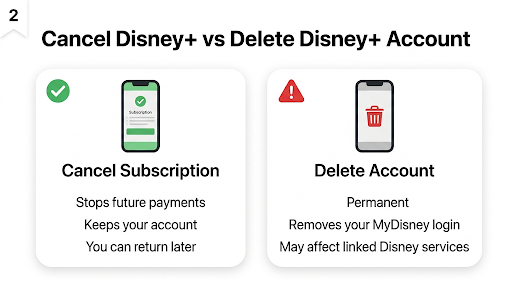
When you cancel your subscription, Disney+ stops renewing your plan. You keep watching until the end of the billing period you already paid for. After that, your account simply sits there without an active plan. You can sign back in later, pick a plan, and start watching again with the same email and password.
When you delete your account, Disney+ removes it permanently. Tom’s Guide notes that after deletion you would need to sign up as a brand new customer to watch again. There’s another catch people overlook: your Disney+ login is a MyDisney account, and that same login can be connected to other Disney services, such as Hulu or ESPN. Deleting it can affect more than just Disney+.
So if your goal is “stop paying but keep everything,” cancellation is the only thing you need.
How Do You Know If Apple or Disney Bills Your Disney+ Subscription?
Check your iPhone’s Subscriptions list first. If Disney+ appears there as active, Apple bills you. If it doesn’t appear, Disney or a partner bills you.
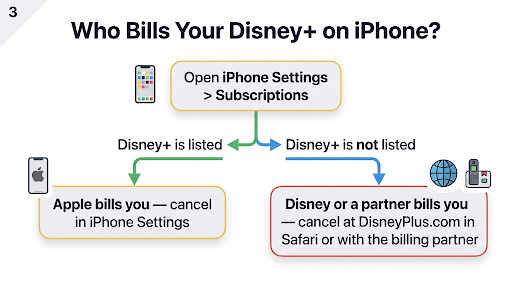
This step matters more than ever. Since October 2024, Disney no longer lets new or returning subscribers sign up and pay through Apple. Existing Apple-billed subscribers were not affected and can still manage their plans in iPhone Settings. In practice, that means:
- If you subscribed inside the Disney+ app years ago and never canceled, you’re probably billed by Apple.
- If you signed up or restarted Disney+ after late 2024, even on your iPhone, you’re almost certainly billed directly by Disney.
Here are four quick ways to confirm:
- Check iPhone Settings. Go to Settings, tap your name, then tap Subscriptions. Look under Active.
- Check your bank or card statement. Apple’s support page explains that Apple charges usually show as Apple, apple.com/bill, or something similar. A charge labeled with Disney+ or DisneyPlus means Disney bills you directly.
- Search your email. Apple sends its own receipts. If you only have Disney receipts, Apple isn’t your biller.
- Check your Disney+ Account page. Sign in at DisneyPlus.com in Safari and open Account. Your subscription section shows your plan and who handles billing.
How Do You Cancel Disney+ in iPhone Settings If Apple Bills You?
Open Settings, tap your name, tap Subscriptions, choose Disney+, and tap Cancel Subscription. That’s the whole process, and it doesn’t touch your Disney+ account at all.
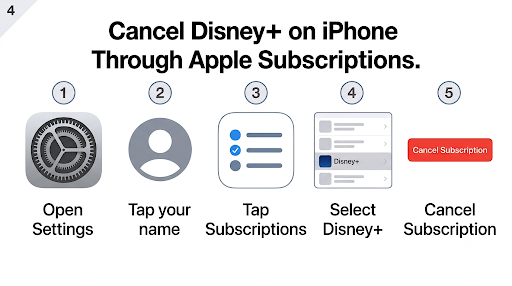
- Open the Settings app on your iPhone.
- Tap your name at the top of the screen.
- Tap Subscriptions.
- Under Active, tap Disney+.
- Scroll down and tap Cancel Subscription, then confirm.
Once it works, the Disney+ entry will show an expiration date instead of a renewal date. That date is your last day of access.
Prefer the App Store? You can get to the same screen there. Open the App Store, tap your profile picture in the top right, tap Subscriptions, choose Disney+, and cancel. Apple’s guide on canceling a subscription from Apple covers both routes.
One thing to know before you cancel an Apple-billed plan
Because Disney stopped offering Apple billing to returning subscribers, you can’t restart an Apple-billed plan later. If you come back, you’ll subscribe on DisneyPlus.com and pay Disney directly. Your account still works the same way, but your payment method and receipts will move to Disney. If you like paying with your Apple balance or keeping everything on one Apple bill, factor that in.
How Do You Cancel Disney+ on iPhone If Disney Bills You Directly?
Use a browser, not the Disney+ app.
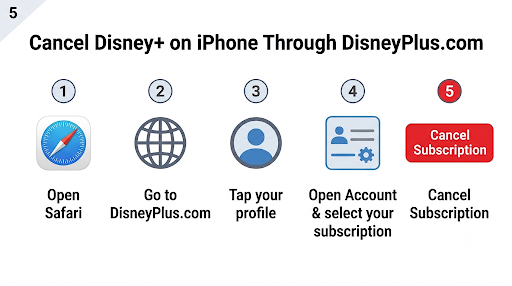
Open Safari, sign in at DisneyPlus.com, go to your profile, select Account, choose your subscription, and tap Cancel Subscription.
- Open Safari (or Chrome) on your iPhone.
- Go to DisneyPlus.com and sign in with the email tied to your subscription.
- Tap your profile icon.
- Tap Account.
- Under Subscription, tap your Disney+ plan.
- Tap Cancel Subscription and follow the prompts. You may be asked for a reason or shown an offer to stay. You can skip past those.
Disney’s own Disney+ Help Center cancellation guide lists the same steps and confirms your plan stays active until the current term ends. You should also get a confirmation email, so keep an eye on your inbox.
If Disney+ keeps renewing because of a card you saved months ago, it helps to understand how the billing side works. Our guide on how Disney+ auto payment works explains renewal timing and how to manage your saved payment method.
What If Disney+ Comes From Verizon, Hulu, or a Bundle?
Cancel with the company that sends you the bill. Neither iPhone Settings nor DisneyPlus.com can cancel a plan that another company sells you.
- Mobile carrier perks (like Verizon): Remove the perk or add-on in your carrier’s app or account page.
- Disney Bundle billed by Hulu: Manage it from your Hulu account.
- Bundles in general: Canceling a bundle usually ends every service in it, not just Disney+. If you want to keep Hulu or ESPN, check whether you can switch plans instead of canceling the whole bundle.
On your DisneyPlus.com Account page, a partner-billed plan usually won’t show a normal Cancel button. That’s your sign to look for the provider’s name and cancel there.
Why Is There No Cancel Button or No Disney+ in My iPhone Subscriptions?
No Cancel button usually means the plan is already canceled.
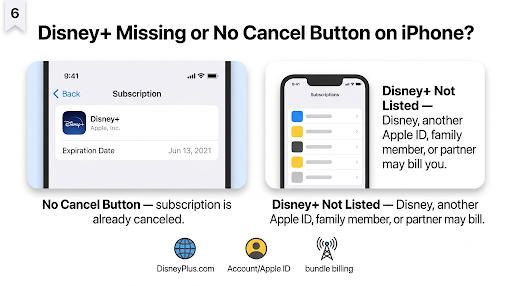
Disney+ missing from the list usually means Apple doesn’t bill you, or you’re signed in with a different Apple ID.
No Cancel button
Apple says that if you don’t see a Cancel button, or you see an expiration message in red, the subscription is already canceled. It won’t renew. You just keep access until the date shown.
Disney+ isn’t listed at all
Apple’s page on what to do if a subscription isn’t listed covers the main causes. Here’s how they apply to Disney+:
| Likely cause | What to do |
| Disney bills you directly (the most common case today) | Cancel at DisneyPlus.com in Safari |
| You subscribed with a different Apple ID | Sign in with that Apple ID, then check Subscriptions again |
| A family member started the subscription | A Family Sharing organizer can’t cancel it. The family member must cancel from their own device or Apple ID |
| A carrier or bundle partner bills you | Cancel in that company’s account |
Disney+ says you’re not subscribed, but you’re still being charged
This usually means you’re signed in to Disney+ with a different email than the one that pays. Sign out, then sign back in using the email from your billing receipts. Search all your inboxes for Disney+ welcome or billing emails if you’re not sure which one it is.
What Happens After You Cancel Disney+ on iPhone?
You keep watching until your paid period ends. After that, streaming stops, but your account stays put and you can come back anytime.
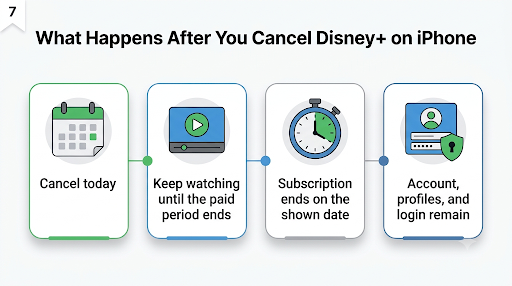
- Access: Continues through the end of your current billing cycle, whether Apple or Disney bills you.
- Your account and login: Stay active. You can still sign in.
- Profiles and watchlist: Because your account isn’t deleted, your profiles are tied to it when you return. Disney doesn’t publish a firm promise on how long viewing data is kept, so don’t treat this as a permanent backup.
- Downloads: Offline downloads need an active subscription. Expect them to stop playing once your access ends.
- Annual plans: Canceling stops the next yearly renewal. You keep access until the year you paid for runs out.
- Other devices: Your TV, iPad, and laptop lose access at the same time, because the subscription belongs to the account, not the phone.
Can You Get a Refund After Canceling Disney+?
Usually not for a partial month.
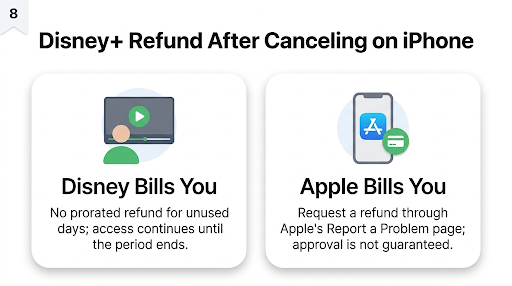
Disney’s site states that canceling takes effect at the end of the billing period, with no refunds or credits for partial months on direct-billed plans.
Apple-billed subscribers have one more option. You can request a refund through Apple’s Report a Problem page. Sign in with your Apple ID, choose “Request a refund,” pick the reason, and select the Disney+ charge. Apple reviews each request, so approval isn’t guaranteed. You’ll have the best chance if you were charged by mistake and you ask soon after the charge.
Refund rules can also vary by country. If you’re outside the U.S., local consumer laws may give you more rights on a new subscription.
Common Mistakes That Lead to Another Charge
Most surprise Disney+ charges come from one of these:
- Deleting the app and assuming that’s enough. It only removes the app. Apple’s own community moderators repeat this often: deleting an app doesn’t cancel its subscription.
- Canceling on the wrong account. Families often have two Disney+ logins or two Apple IDs. Cancel on the one that actually pays.
- Waiting until renewal day. Apple’s subscription terms generally ask you to cancel at least 24 hours before renewal. Cancel a few days early. You lose nothing, since access runs to the end of the period anyway.
- Deleting the account before canceling a third-party plan. If Apple, a carrier, or a bundle bills you, deleting your Disney+ account doesn’t stop that company’s charges. You can end up paying for a service you can’t log in to.
- Not saving proof. Take a screenshot of the expiration date in iPhone Settings or keep Disney’s confirmation email. It makes any billing dispute much easier.
Canceling early works the same way with other services. If you’re trimming more than one subscription, our walkthrough on canceling Amazon Prime before your renewal date follows the same “cancel early, keep your access” approach.
Real-World Scenarios
“I signed up on my iPhone last year, but Disney+ isn’t in my Subscriptions.”
That’s expected. Since late 2024, the Disney+ app sends new subscribers to DisneyPlus.com to pay. Even though you used your iPhone, Disney bills you. Cancel through Safari.
“My kid’s iPad is the one that subscribed.”
If the subscription is on your child’s Apple ID inside Family Sharing, you can’t cancel it from your own phone. Sign in to their Apple ID on their device (or have them do it) and cancel from Settings.
“I want a break for the summer, not a goodbye.”
Cancel now and resubscribe later. Your account stays ready. Just remember that if you were Apple-billed, your next plan will be billed by Disney.
Frequently Asked Questions
Can I cancel Disney+ inside the Disney+ app on my iPhone?
Not reliably. For Apple billing, the app only points you back to Apple’s subscription settings. For Disney billing, the cancel option lives on the Account page in a web browser. Use iPhone Settings or Safari instead of the app.
Does canceling Disney+ on my iPhone cancel it on my TV too?
Yes. The subscription is attached to your account, not to one device. When your access ends, it ends on every screen signed in to that account.
Can I cancel Disney+ without my iPhone?
Yes. A Disney-billed plan can be canceled at DisneyPlus.com from any browser. An Apple-billed plan can be canceled from another Apple device signed in to the same Apple ID, such as an iPad or Mac, or by contacting Apple Support if you no longer have an Apple device.
If I cancel today, do I lose access right away?
No. You keep full access until the end of the period you already paid for. Canceling only stops the next charge.
Can I switch from Apple billing to Disney billing without canceling?
No. Disney doesn’t move Apple-billed plans over. You would cancel in iPhone Settings, let the plan run out, and then subscribe again at DisneyPlus.com using the same account.
Will someone I share my account with be notified when I cancel?
Disney sends cancellation emails to the account email, not to every profile. Other people using your profiles will simply lose access when your billing period ends, so give them a heads-up.
Do I need to delete my Disney+ account to stop all emails?
No. You can unsubscribe from marketing emails using the link at the bottom of any Disney+ promotional email. Deleting your account is only worth it if you never want to come back and want your MyDisney login removed.
Final Recommendation
Start with the 10-second check: open Settings, tap your name, and tap Subscriptions. If Disney+ is there, cancel it right on that screen. If it isn’t, open Safari, sign in at DisneyPlus.com, and cancel from Account. If a carrier or bundle sends your bill, cancel with them.
Whichever path you’re on, skip “Delete Account” entirely. Cancel a few days before your renewal date, screenshot the expiration date or save the confirmation email, and your account will be waiting for you whenever you want to come back.