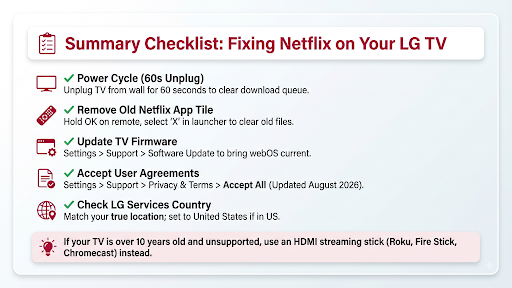
If the Netflix app won’t update or reinstall from the LG Content Store, unplug your LG TV from the wall for at least 60 seconds, plug it back in, then delete the Netflix tile from the launcher and install it again. If that doesn’t work, check three things: the TV firmware, the LG User Agreements, and the LG Services Country setting. One of these is behind most stuck installs.
This guide goes through each fix in order, starting with the quickest. It gives menu paths for each webOS version and explains how to tell when your TV simply can’t run Netflix anymore.
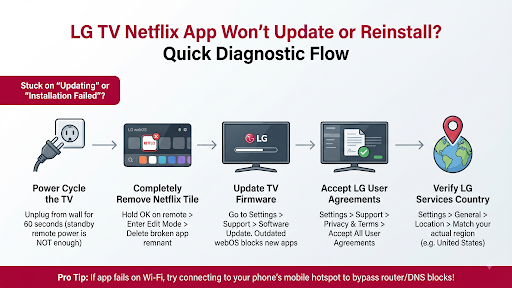
Quick Overview
- Power cycle the TV: Unplug it for 60 seconds. A soft restart from the remote is not the same thing.
- Remove the old Netflix tile: Delete it from the launcher before you reinstall it.
- Update the TV firmware: An outdated webOS build can block new app versions.
- Accept the User Agreements: The Terms of Use and Privacy Policy must be accepted for Netflix to install.
- Check LG Services Country: It must match where you actually live.
- Test the network: Try a phone hotspot to rule out your router.
- Factory reset as a last resort: It clears corrupted files but erases all apps and settings.
- Check TV age: Many LG TVs around 10 years old or older no longer support Netflix.
Why Won’t the Netflix App Update or Reinstall on My LG TV?
Usually the TV itself is blocking the download, not Netflix. The most common causes are corrupted app files left over from an interrupted update, TV firmware that’s behind the app version, User Agreements that haven’t been accepted, or a wrong region setting.
Here’s how the usual symptoms match up with their likely causes:
| What You See | Most Likely Cause | First Fix to Try |
| Netflix stuck on “Updating” for hours or days | Stalled download or temporary glitch | Unplug the TV for 60 seconds |
| Install button does nothing or fails after deleting | Leftover app files in the launcher | Remove the tile, power cycle, reinstall |
| Netflix keeps asking for an update that never finishes | TV firmware is outdated | Run a software update |
| Netflix missing from the Content Store search | Wrong LG Services Country or unsupported model | Check location settings |
| No apps will install or update at all | User Agreements, network, or storage issue | Accept agreements and test the connection |
| “Netflix is no longer available on this device” | The TV is no longer supported | Use an external streaming device |
How Do You Power Cycle an LG TV the Right Way?
Unplug the power cord from the wall outlet or power strip, wait at least 60 seconds, then plug it back in. Pressing the power button on the remote only puts most LG TVs into standby, so memory and the stuck download queue don’t fully clear.
- Turn the TV off with the remote.
- Pull the power cord from the outlet.
- Wait a full minute. Some people also hold the power button on the TV itself for about 30 seconds while it’s unplugged to drain leftover power.
- Plug the TV back in and turn it on.
- Open the LG Content Store and try the Netflix update or install again.
When Netflix gets stuck on “updating” for days, this is the fix people most often report working on Reddit’s r/netflix and r/LGOLED. Try it first. It costs nothing.
How Do You Delete and Reinstall Netflix on an LG TV?
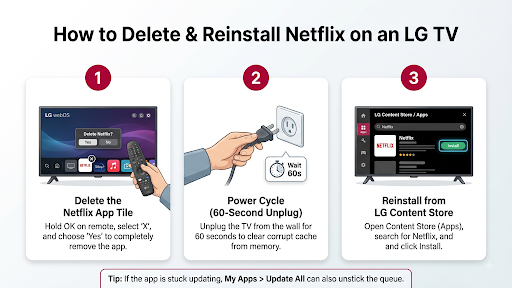
Remove the Netflix tile from the launcher bar first, then search for Netflix in the LG Content Store and select Install. If you skip the removal step, the broken leftover entry can block the new install.
Step 1: Remove the Netflix App
- Press the Home button on your remote.
- Highlight the Netflix tile in the launcher.
- Press and hold OK until Edit Mode appears, then confirm.
- Select the X above the Netflix tile and choose Yes to remove it.
Step 2: Reinstall Netflix from the LG Content Store
- Unplug the TV for 60 seconds before you reinstall. This clears anything still held in memory.
- Open the LG Content Store. On newer models it may just be called Apps.
- Search for Netflix, select it, and choose Install.
- Open the app and sign in again with your Netflix email and password.
LG’s own guide on fixing LG TV apps that won’t work explains that cache or app files can become corrupt, and that deleting and reinstalling the app replaces them.
Tip: If Netflix is still installed but just won’t update, open the LG Content Store, go to My Apps (called My Page on some older models), and select Update or Update All.
How Do You Update the Firmware on an LG Smart TV?
Go to Settings, then All Settings, then Support, then Software Update on webOS 5.0 and newer. If a new Netflix app version needs newer system files than your TV has, the update can fail over and over until the firmware catches up.
| TV Model Year | webOS Version | Software Update Path |
| 2020 and newer | webOS 5.0 and later | Settings > All Settings > Support > Software Update |
| 2016 to 2019 | webOS 3.0 to 4.5 | Settings > All Settings > General > About This TV > Check for Updates |
If an update shows up, select Download and Install. Don’t turn the TV off while it installs. You can also turn on Allow Automatic Updates so this doesn’t happen again.
Keep in mind: Firmware updates fix bugs within your TV’s webOS generation. They don’t move an LG TV up to a new major webOS version. A 2018 TV on webOS 4.0 will stay on webOS 4.x.
Do You Need to Accept LG User Agreements for Netflix?
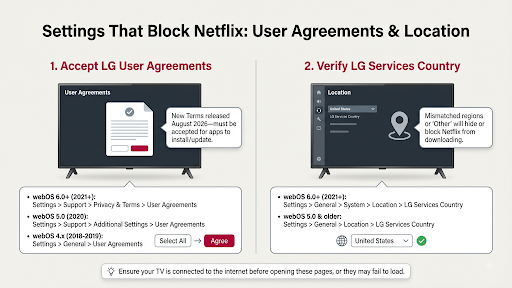
Yes. LG says its Terms of Use and Privacy Policy are required to use smart services such as Netflix and YouTube. If they aren’t accepted, the Content Store can fail to install or update apps with no clear error.
This matters more right now. LG updated its Terms of Use on August 28, 2026, so many TVs are asking owners to restart and accept the new agreements. If you skipped that screen, apps may stop updating. LG walks through the prompt in its guide on accepting the updated User Agreements on your LG TV.
| TV Model Year | User Agreements Path |
| 2021 and newer (webOS 6.0, 22, 23, 24, 25) | Settings > All Settings > Support > Privacy & Terms > User Agreements |
| 2020 (webOS 5.0) | Settings > All Settings > Support > Additional Settings > User Agreements |
| 2019 (webOS 4.5) | Settings > All Settings > General > About This TV > User Agreements |
| 2018 and older (webOS 4.0 and earlier) | Settings > All Settings > General > User Agreements |
Choose Select All, then Agree. The agreements screen won’t load without an internet connection. If the page stays blank, fix your network first.
Could Your LG Services Country Setting Be the Problem?
Yes, and people often overlook it. If LG Services Country is set to “Other” or to a country you don’t live in, Netflix may not show up in the Content Store, or it may refuse to install.
- 2021 and newer (webOS 6.0 and later): Settings > All Settings > General > System > Location > LG Services Country
- 2020 and older (webOS 5.0 and earlier): Settings > All Settings > General > Location > LG Services Country
Set it to United States if that’s where you are. This setting often gets changed after a factory reset, a move, or buying a TV that was made for another market. LG’s guide on changing location settings and LG Services Country notes that available apps depend on the region you select.
While you’re in settings, check two more things LG lists as install blockers:
- LG Account: Some apps won’t install unless you’re signed in to an LG Account on the TV.
- Storage space: If storage is full, delete apps you don’t use. On many newer models, the Memory Optimizer under Support > TV Device Self-Care can also free up space.
How Do You Know If Your Network Is Blocking the Download?
Connect the TV to your phone’s mobile hotspot and try the install again. If Netflix installs over the hotspot, your home network is the problem, not the TV.
Network issues that commonly stall Content Store downloads include:
- Weak Wi-Fi signal: Move the router closer for a test, or use an Ethernet cable if the TV has a LAN port.
- Router glitches: Unplug the modem and router for 30 seconds, then restart them.
- Wrong date and time: If the TV clock is off, secure connections to app servers can fail. Set the date and time to automatic.
- DNS problems: On the LG webOS forums, users often report that a manual DNS such as 8.8.8.8 helps when the Content Store won’t connect. This is a community fix, not an official LG step, so switch back if it changes nothing.
Wi-Fi band and signal problems show up with Netflix on other devices too. If you also stream on a Roku, the same router checks apply in this guide to fixing Netflix error NW-2-5 on Roku over 5GHz Wi-Fi.
What If You Have a 2019 LG TV on webOS 4.5?
LG has documented a specific problem on 2019 webOS 4.5 TVs. File errors during a network software or app update can stop an app from installing or launching. LG’s fix is to remove the app remnant from the launcher before reinstalling, and if that fails, to reset the TV to initial settings and then install the app again.
If you own a 2019 model and Netflix won’t come back no matter how many times you reinstall it, you’ve probably hit this bug. The factory reset in the next section is the step most likely to fix it.
Should You Factory Reset Your LG TV to Fix Netflix?
Only after every other fix has failed. A reset wipes the corrupted files that block reinstalls, but it also deletes every installed app, account sign-in, Wi-Fi password, and picture setting.
- 2019 and older (webOS 4.5 and earlier): Settings > All Settings > General > Reset to Initial Settings
- Newer models: Look under Settings > All Settings > Support, or General > System, for Reset to Initial Settings. The exact location varies by model year.
After the reset, set up the TV again in this order: connect to the internet, accept the User Agreements, confirm LG Services Country is the United States, run a software update, and then install Netflix. If you install Netflix before those steps, it can fail for the same reasons as before.
Is Your LG TV Too Old for the Netflix App?
Possibly, if your TV is around 10 years old or older. Netflix regularly drops support for devices that can’t run its newer app versions. In early 2026 it ended support for a group of smart TVs more than a decade old.
Tom’s Guide covered that round of Netflix ending support for older devices in 2026. The main problem is that older TVs stop getting the system upgrades newer Netflix apps need. Since LG TVs don’t move to newer major webOS versions, an older LG model can’t be updated out of this.
Signs your TV has reached this point:
- You see “Netflix is no longer available on this device” or a similar message.
- Netflix doesn’t appear in the Content Store even with the correct country set.
- Every other app installs fine, but Netflix never does.
Reinstalling won’t help here. The cheapest fix is a streaming stick plugged into an HDMI port. Streaming sticks have their own quirks, so keep these on hand: a Netflix black screen on Fire Stick 4K with HDR, and Netflix buffering on Roku caused by audio output settings.
What Mistakes Make This Problem Worse?
- Reinstalling without removing the old tile: The broken entry can stay put and block the new install.
- Restarting with the remote only: Standby doesn’t clear memory the way unplugging does.
- Skipping the User Agreements screen: With the August 2026 terms update, this is a likely cause right now.
- Factory resetting too early: You lose every app and setting when a 60-second unplug might have fixed it.
- Using a VPN or changing region for content: A mismatched LG Services Country can hide Netflix from the store.
Frequently Asked Questions
Why is Netflix stuck on “updating” in the LG Content Store?
Usually the download stalled and the TV never cleared it. Unplugging the TV for a full minute resets the download queue. If it’s still stuck afterward, check whether the TV itself has a pending firmware update, because the app may be waiting on it.
Why did Netflix disappear from my LG TV after a software update?
A firmware update can reset your User Agreements or change the region, and either one can hide or disable Netflix. Accept the agreements again, confirm the LG Services Country setting, and then reinstall the app from the Content Store.
Will I lose my Netflix profiles if I reinstall the app?
No. Your profiles, watch history, and My List are stored in your Netflix account, not on the TV. You only need to sign in again after reinstalling.
Can I install Netflix on an LG TV without the LG Content Store?
Not officially. LG webOS TVs only install apps through the LG Content Store. If the store can’t install Netflix, an external device such as a Roku, Fire TV Stick, Chromecast, or game console is the supported workaround.
Does Netflix work on an LG TV purchased in another country?
It can, but you may need to set LG Services Country to the country where you use the TV. Some TVs made for other regions may still show different apps, because LG builds models for specific markets.
Can I watch downloaded Netflix shows while my TV app is broken?
Not on the TV, since LG TVs don’t support Netflix downloads. You can use downloads on a phone or tablet in the meantime. If your downloads go missing on Android, this guide on Netflix downloads disappearing from an Android SD card explains why.
Final Recommendation
Work through the fixes in this order. Unplug the TV for 60 seconds, remove the Netflix tile, and reinstall. If that fails, run a software update, accept the User Agreements, and confirm LG Services Country is set to the United States. Test the install over a phone hotspot before you consider a factory reset.
If your LG TV is around 10 years old and Netflix still won’t install after a reset, the TV has likely lost Netflix support. At that point, a streaming stick is faster and cheaper than any more troubleshooting, and you can keep using the TV as a display.