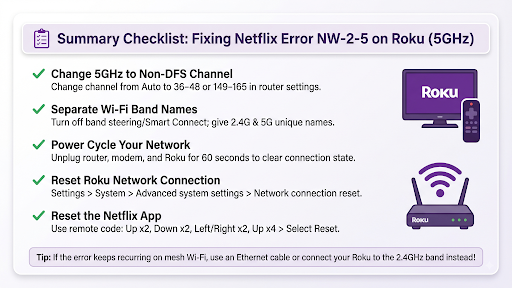
If Netflix shows error NW-2-5 on your Roku only when it’s connected to 5GHz Wi-Fi, the problem is almost always your router’s 5GHz channel or band settings, not your internet plan. The most common cause is a DFS channel that many Roku models can’t use, followed by band steering that keeps bouncing the Roku between bands, and a weak 5GHz signal through walls.
The good news? You usually don’t need a new router or a new Roku. A few setting changes fix this for most people in under 15 minutes. This guide walks you through the exact checks in the right order, so you can find the cause instead of guessing.
Quick Overview
| What You Notice | Most Likely Cause | Best Fix |
| NW-2-5 on 5GHz, fine on 2.4GHz | Router is on a DFS channel (52 to 144) | Set 5GHz to channel 36 to 48 or 149 to 165 |
| Roku keeps jumping between bands | Band steering or Smart Connect | Give 2.4GHz and 5GHz separate network names |
| Error comes and goes, slow loading | Weak 5GHz signal through walls or floors | Check signal strength, move router or Roku |
| Other apps work, only Netflix fails | Stuck Netflix app data or DNS issue | Reset Netflix with the remote code, change router DNS |
| Started after an update | Stale network settings | Roku network connection reset, then reconnect |
What Does Netflix Error NW-2-5 Mean on Roku?
Netflix error NW-2-5 means your Roku took too long to reach Netflix’s servers. Netflix describes it as a network issue that stops your device from connecting, and the screen usually says “Netflix has encountered an error. Retrying in [X] seconds” with the code NW-2-5 underneath.
It’s a Netflix code, not a Roku system error. That matters, because it tells you the Roku itself is working. Something between the Roku and Netflix is timing out.
When the error shows up only on 5GHz, you’ve already done half the troubleshooting. Your internet service is fine, Netflix is fine, and your Roku is fine. The weak link is the 5GHz connection between your router and the Roku.
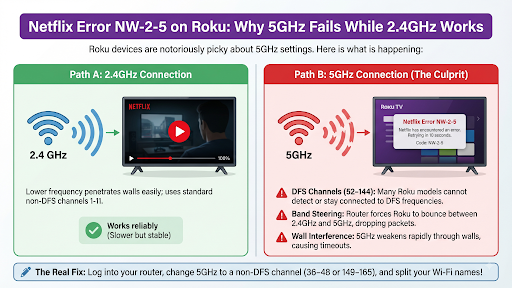
Why Does Netflix NW-2-5 Happen Only on 5GHz but Work on 2.4GHz?
Because Roku devices are pickier about 5GHz than most phones and laptops. A setting that works for your iPhone can quietly break your Roku’s connection on the same network.
1. Your Router Is Using a DFS Channel
This is the number one cause. Roku says all current Roku streaming devices support 5GHz channels 36 to 48 and 149 to 165. DFS channels (roughly 50 to 64 and 100 to 144) only work on some newer models, and only on Roku OS 12.0 or later.
Most routers are set to pick a 5GHz channel automatically. One night your router decides a DFS channel looks cleaner, switches to it, and your Roku either drops off 5GHz or struggles to hold the connection. Netflix then times out, and you see NW-2-5.
Roku also notes that when an unsupported device tries to join a DFS channel, it falls back to the 2.4GHz band of the same network. That’s exactly why “it works on 2.4GHz but not 5GHz” is such a common complaint.
2. Band Steering or Smart Connect Keeps Switching Bands
Band steering lets your router decide which band each device uses, under one Wi-Fi name. Mesh systems like Eero, Google Nest Wifi, and Orbi, and many ISP gateways, turn this on by default.
The trouble is that the router can move your Roku from 5GHz to 2.4GHz (and back) in the middle of a show. Every switch is a short disconnect. Netflix is very sensitive to that, so a quick handoff that your phone never notices can trigger NW-2-5 on your TV.
3. The 5GHz Signal Is Too Weak Where Your Roku Sits
5GHz is faster, but it has shorter range and loses more strength through walls, floors, and cabinets than 2.4GHz. A Roku stick tucked behind a TV that’s mounted on a wall two rooms away from the router is a classic setup for this error.
4. Stale Network or App Data on the Roku
After a router swap, a password change, or a firmware update, the Roku can hang on to old network details. Netflix can also hold onto a bad session. Both lead to timeouts that look like a Wi-Fi problem.
5. DNS or ISP Routing Problems
Less often, the router’s DNS server is slow to look up Netflix addresses. This one tends to show up as “Netflix error NW-2-5 but internet is fine,” where YouTube and other apps play normally.
How Do You Confirm the 5GHz Band Is the Problem?
Run a quick side-by-side test. Connect the Roku to 2.4GHz, open Netflix, and play something. Then switch back to 5GHz and try again. If Netflix only fails on 5GHz, you know the fix lives in your router settings.
Next, check what your Roku is actually connected to:
- Press Home on your Roku remote.
- Go to Settings > Network > Check connection and let the test finish.
- Go to Settings > Network > About to see your network name and signal strength.
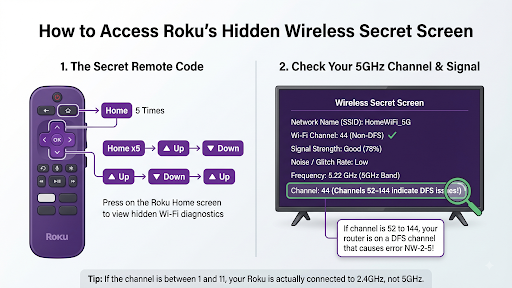
For more detail, open the hidden Wireless Secret Screen. Press Home five times, then Up, Down, Up, Down, Up. This screen shows the Wi-Fi channel, signal strength, noise, and glitch rate.
Look at the channel number. Channels 1 to 11 mean you’re on 2.4GHz. Anything 36 or higher means 5GHz. If you see a channel between 52 and 144, you’ve likely found your problem.
Pro Tip! If you can’t see your 5GHz network at all in the Roku’s network list, but your phone sees it, that’s a strong sign your router is parked on a DFS channel your Roku model doesn’t support.
How Do You Fix Netflix Error NW-2-5 on Roku When Using 5GHz?
Start with the quick fixes, then move to the router settings that solve most 5GHz-only cases. Test Netflix after each step so you know which one worked.
Step 1: Power Cycle the Roku, Modem, and Router
- Unplug your Roku, router, and modem from power.
- Wait at least 30 to 60 seconds.
- Plug in the modem first and wait until its lights are steady.
- Plug in the router and wait for Wi-Fi to come back.
- Plug in the Roku and open Netflix.
If you have a Roku TV, use Settings > System > Power > System restart. Pressing the power button on the remote only puts the TV in standby, which doesn’t clear the network state.
Step 2: Move Your Router’s 5GHz Band to a Non-DFS Channel
This is the fix that works for most people with the 5GHz-only version of this error.
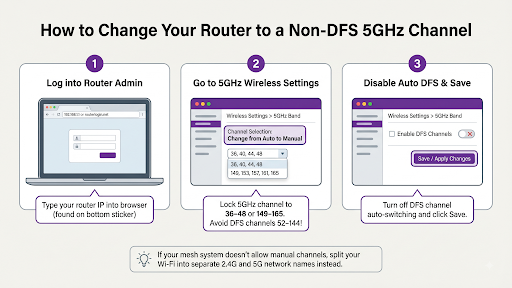
- Log into your router’s admin page or app (Eero, Nest, Netgear Orbi, Xfinity, AT&T Smart Home Manager, and so on).
- Find the 5GHz wireless settings. It’s often under Wireless, Wi-Fi, or Advanced.
- Change the channel from Auto to a fixed channel between 36 and 48 or 149 and 165.
- If your router has a setting such as “Auto select channel including DFS channels” or a DFS toggle, turn it off.
- Save, let the router restart, then reconnect the Roku to the 5GHz network.
Important Point to be Considered! Some mesh systems and ISP gateways don’t let you turn off DFS or choose a channel in their app. In that case, check the router’s web admin page, contact your ISP, or use the separate-network approach in Step 3.
Step 3: Split Your 2.4GHz and 5GHz Networks
If your router uses one Wi-Fi name for both bands, you can’t fully control which band your Roku joins. Giving each band its own name stops the switching.
- In your router settings, turn off Band Steering, Smart Connect, or the “combine bands” option.
- Name the bands differently, for example “HomeWiFi” and “HomeWiFi_5G.”
- On your Roku, go to Settings > Network > Set up connection > Wireless and choose the 5GHz name.
Now the Roku stays on 5GHz and won’t jump to 2.4GHz without you. If your router won’t let you split bands, a 5GHz-only guest network can do the same job on some models. Just make sure it also isn’t on a DFS channel.
Step 4: Reset the Roku’s Network Connection
This clears every saved Wi-Fi and wired setting on the Roku and restarts it. Have your Wi-Fi password ready.
- Go to Settings > System > Advanced system settings.
- Select Network connection reset > Reset connection.
- After the restart, reconnect to your 5GHz network.
On some Roku models, Advanced system settings appears directly under Settings instead of under System. A network reset is not a factory reset. Your apps and account stay put.
Step 5: Reset Netflix on Your Roku
If other apps stream fine on 5GHz and only Netflix fails, reset the Netflix app itself. Open Netflix and, on the remote, press:
Up, Up, Down, Down, Left, Right, Left, Right, Up, Up, Up, Up
A menu appears. Choose Sign out, Start Over, Deactivate, or Reset (the wording varies by Netflix version), then sign back in.
Still stuck? Remove and reinstall the Netflix channel. Highlight Netflix on the Home screen, press the Star (*) button, choose Remove channel, restart the Roku, then add Netflix again from the Streaming Store. Reinstalling works differently on other TV platforms, so if you also run into trouble on a different set, see our guide on fixing Netflix when it won’t reinstall from the LG Content Store.
Step 6: Improve the 5GHz Signal Reaching the Roku
Roku recommends running Settings > Network > Check connection again after moving things, so you can see if your signal and download speed improved.
- Raise the router off the floor and keep it out of cabinets.
- Move the router or a mesh node closer to the TV room.
- Use the HDMI extender cable that came with Roku streaming sticks. It pulls the stick away from the back of the TV, which can block Wi-Fi.
- Keep the Roku away from microwaves, metal shelves, and thick concrete walls.
For reference, Roku lists about 3 Mbps for SD, 5 Mbps for HD, and 25 Mbps or more for 4K streaming.
Step 7: Change the DNS Server on Your Router
Roku doesn’t offer a manual DNS option in its menus, so make this change on your router. Set the primary and secondary DNS to a public resolver such as 8.8.8.8 and 8.8.4.4 (Google) or 1.1.1.1 and 1.0.0.1 (Cloudflare). Restart the router and test Netflix again.
Step 8: Try a Narrower 5GHz Channel Width
If your router lets you set channel width, try stepping down from 160 MHz to 80 MHz, or from 80 MHz to 40 MHz. Wider channels are faster on paper but more sensitive to interference, especially in apartments with lots of neighboring networks. A slightly slower but steadier link is better for streaming.
Step 9: Update Roku OS and Router Firmware
On the Roku, go to Settings > System > System update > Check now. DFS support on newer Roku models requires Roku OS 12.0 or higher, so an older build can keep you off channels your hardware can actually use. Then check your router’s app or admin page for a firmware update.
Step 10: Use Ethernet If Your Roku Has a Port
Roku Ultra and many Roku TVs have an Ethernet port. A wired connection skips the 5GHz question completely and is the most stable option for 4K Netflix. If running a cable isn’t practical, a powerline or MoCA adapter is worth considering.
What Should You Do If Netflix Shows NW-2-5 but Your Internet Is Fine?
Check whether only Netflix is affected. If YouTube, Hulu, and other apps play fine on 5GHz, the issue is usually the Netflix app data or DNS, so start with Step 5 and Step 7 above.
A quick way to split the problem in half is to connect the Roku to your phone’s hotspot. If Netflix works there, your home network or ISP path is the issue. If it still fails on the hotspot, the Roku or the Netflix app is the problem.
Also check if your error screen shows a More Details option. Selecting it and running the built-in network check can show whether Netflix sees a connection problem on your end.
If playback starts but keeps stalling instead of showing an error, that’s a different symptom with different fixes. Our guide on fixing Netflix buffering on Roku caused by audio output settings covers that case.
Does Netflix NW-2-5 on 5GHz Happen More With Mesh Wi-Fi?
Yes, it shows up a lot with mesh systems and ISP gateways. They combine bands under one name, use band steering by default, and often choose DFS channels automatically. Roku community moderators have pointed out that some Eero setups enable DFS under automatic channel selection, which is hard to turn off from the app.
If you have mesh Wi-Fi, try these in order:
- Check whether your app has a “Compatibility mode,” “Legacy device support,” or a way to separate bands.
- Move a mesh node closer to the TV so the Roku gets a strong 5GHz link.
- Ask your ISP to lock the 5GHz channel to 36 to 48 or 149 to 165 if your gateway hides that setting.
Which Roku Models Have Trouble With 5GHz DFS Channels?
Many older and budget Roku players and Roku TVs don’t support DFS channels. Roku keeps the current list of excluded models on its advanced networking support page, and it changes as new devices and updates roll out. Newer models with DFS support still need Roku OS 12.0 or later.
To find your model number, go to Settings > System > About. Then compare it with the list on Roku’s advanced networking features page. If your model isn’t supported, setting a non-DFS channel on your router is the only reliable way to stay on 5GHz.
Common Mistakes That Keep the NW-2-5 Error Coming Back
- Leaving the 5GHz channel on Auto. The router can drift back to a DFS channel days later, and the error returns “out of nowhere.”
- Only restarting the TV with the remote. On Roku TVs, that’s standby. Use System restart or unplug it.
- Running a VPN or proxy on the router. Netflix may block or slow VPN traffic, which can look like a timeout. Turn it off to test.
- Factory resetting too early. A factory reset erases everything. Try the network connection reset first.
- Blaming the internet plan. If 2.4GHz works, your plan is fine. Paying for a faster tier won’t fix a channel problem.
Pro Tip! After you fix it, write down the 5GHz channel you set. If you ever reset the router or your ISP pushes an update, you’ll know exactly what to change back.
Is It Netflix, Roku, or Your Network?
Use this quick test to narrow it down before you call anyone for support.
| Test | Result | What It Means |
| Netflix on Roku over 2.4GHz | Works | 5GHz router settings are the cause |
| Other apps on Roku over 5GHz | Work | Netflix app data or DNS issue |
| Netflix on Roku over phone hotspot | Works | Home network or ISP path issue |
| Netflix on another device on the same 5GHz network | Works | Roku-specific compatibility issue (often DFS) |
| Netflix fails everywhere | Fails | Possible ISP or Netflix service problem |
Testing on a second streaming device is a smart move. If a Fire TV Stick on the same 5GHz network plays Netflix fine, you know the issue is Roku-specific. If that stick has its own display problems, our guide on fixing a Netflix black screen on Fire Stick 4K with HDR can help you sort that out separately.
Frequently Asked Questions
Why does my Roku keep switching from 5GHz to 2.4GHz?
Your router is likely using band steering or a DFS channel. With one shared network name, the router decides the band for the Roku. Give the bands separate names and lock 5GHz to a non-DFS channel, and the Roku will stay where you put it.
How do I reset Netflix on a Roku TV?
Open Netflix and press Up, Up, Down, Down, Left, Right, Left, Right, Up, Up, Up, Up on the remote. Pick Sign out or Reset from the menu that appears, then sign in again. This clears the Netflix session without touching your other apps.
Can a Roku connect to Wi-Fi 6E or 6GHz networks?
Roku’s networking support pages list only 2.4GHz and 5GHz channels, so plan on connecting your Roku to one of those bands. If your router broadcasts 6GHz under the same name, giving the 5GHz band its own name keeps things simple.
Is NW-2-5 the same as Netflix error NW-2-4 or NW-3-6?
They’re related but not the same. All three are network-related Netflix codes, and the same basics (restart, check Wi-Fi, check DNS) often help. Each one has its own page in the Netflix Help Center, so search the exact code you see if the steps here don’t clear it.
Will a factory reset fix Netflix NW-2-5 on Roku?
It can, but it’s rarely needed for the 5GHz-only version of this error, because the cause is usually the router. A factory reset erases all settings and apps. Use it only after the router changes and the network connection reset fail.
When should I contact my ISP or Netflix?
Contact your ISP if you can’t change the 5GHz channel or DNS on their gateway, or if Netflix fails on every device and every network test. Contact Netflix if the error appears on several devices across different networks, since that points away from your Roku setup.
Final Recommendation
If Netflix error NW-2-5 shows up on your Roku only on 5GHz, go straight to your router. Lock the 5GHz band to a channel between 36 and 48 or 149 and 165, and give the 2.4GHz and 5GHz bands separate names. That pair of changes fixes the majority of these cases.
If the error still appears, reset the Roku’s network connection, reset the Netflix app with the remote code, and switch your router’s DNS. And if your Roku has an Ethernet port and you can reach it with a cable, plug it in. It’s the most reliable way to keep Netflix streaming without interruptions.