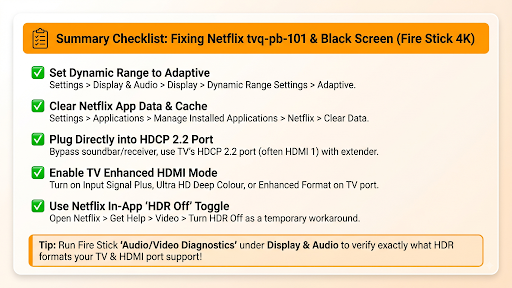
If Netflix shows a black screen or the tvq-pb-101 error on your Fire TV Stick 4K or 4K Max only when HDR is turned on, the problem is almost always the HDR handshake between your stick, your HDMI cable, and your TV. The fastest fix is to switch your Fire Stick’s Dynamic Range setting to Adaptive (or turn HDR off in the Netflix app), then clear the Netflix app data and check your HDMI path.
Below, you’ll find the exact steps for each fix, what every tvq-pb-101 sub-code means, and how to get HDR working again instead of just switching it off forever.
Quick Overview
- Change the Fire Stick HDR mode: Settings > Display & Audio (or Display & Sounds) > Display > Dynamic Range Settings > set it to Adaptive. Test with HDR Off if the error continues.
- Turn HDR off inside Netflix only: Netflix home screen > press Back > Get Help > Video > HDR Off.
- Clear Netflix data and cache: Settings > Applications > Manage Installed Applications > Netflix > Clear data > Clear cache.
- Fix the HDMI path: plug the stick straight into the TV, use an HDCP 2.2 port (often HDMI 1), and try a Premium High Speed HDMI cable or extender.
- Update and power cycle: update Fire OS and the Netflix app, then unplug the stick for 30 seconds.
What Does Netflix Error tvq-pb-101 Mean on a Fire TV Stick 4K?
Error tvq-pb-101 is a playback error. It means Netflix started to play a title but something on your device or connection stopped the video from showing. Netflix’s own help page for the most common Fire Stick version says the tvq-pb-101 (5.2.5) error happens when an issue with data stored on your device stops Netflix from playing.
On a Fire TV Stick 4K or 4K Max, that “data” issue often shows up only with HDR or Dolby Vision titles. Regular HD shows play fine. Then you open a 4K HDR movie and you get a black screen, a black screen with sound, or the error card a few seconds in. That pattern tells you HDR is the trigger, not your Netflix account.
What Do the Numbers in Brackets Mean?
The number in brackets after tvq-pb-101 is the sub-code. It points you to the right fix much faster, so always note it down before you start troubleshooting.
| Sub-code | What Netflix says it means | Where to start |
| 5.2.5 | Data stored on the device is stopping playback. On HDR setups, this is the code most Fire Stick 4K Max owners report. | Clear Netflix data, change HDR mode, then check HDMI |
| 5.2.12, 5.2.8, 5.2.15, 5.2 undefined | Device or HDMI connection problem during playback | Reverse or replace the HDMI cable, bypass receivers, try another port |
| 1.8, 5.3, 5.6.1, 5.6.2 | Data stored on the device is stopping playback | Restart, clear app data, reinstall Netflix |
| 3.1.-52, 3.1.2, 3.1.-61 | A network issue is stopping the device from reaching Netflix | Restart your router, reset DNS, VPN, or proxy settings |
| E100 | General playback failure that usually clears after an app reset | Sign out, clear data, restart the stick |
Important Point to be Considered! If your sub-code starts with 3.1, HDR is probably not your problem. That’s a network error. Start with your router and Wi-Fi, and if you also stream on other devices, our guide to the Netflix NW-2-5 error on 5GHz Wi-Fi walks through the same kind of connection fixes.
Why Does Netflix Only Show a Black Screen When HDR Is Turned On?
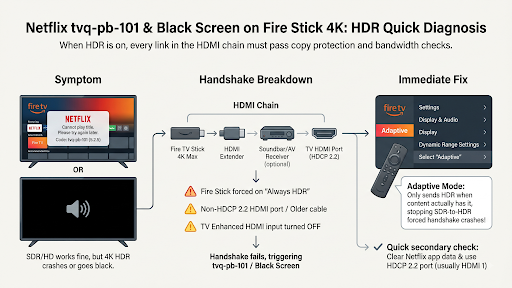
Netflix goes black with HDR because HDR video needs more from every link in the chain. Your Fire Stick, the HDMI cable, any soundbar or receiver in between, and the TV port all have to agree on HDR, 4K, and copy protection before the picture appears. If one link fails that check, you get no picture or an error.
Here are the most common reasons:
- HDCP 2.2 handshake failure: Netflix requires an HDMI port that supports HDCP 2.2 or later for 4K or HDR, which is usually the HDMI 1 port. Many TVs only support it on one or two ports.
- A cable that can’t carry HDR bandwidth: older or very cheap HDMI cables often work for 1080p but drop out with 4K HDR.
- A soundbar or AV receiver in the middle: if any device between the stick and TV doesn’t pass through HDR or Dolby Vision, playback can fail.
- Always HDR mode on the Fire Stick: forcing every signal into HDR can confuse some TVs and cause flickering, washed-out colors, or black screens.
- TV HDMI port not set to enhanced mode: many TVs need a setting turned on (such as Input Signal Plus on Samsung, HDMI Ultra HD Deep Colour on LG, or Enhanced format on Sony) before a port accepts full 4K HDR.
- Corrupted Netflix app data or an outdated Fire OS build: Fire Stick 4K Max owners saw a wave of tvq-pb-101 (5.2.5) errors on HDR titles, and Amazon later said on its device forum that the issue had been resolved through an update. That’s why updating matters.
How Do You Fix Netflix tvq-pb-101 on Fire Stick 4K With HDR On?
Work through these fixes in order. Test a Netflix HDR title after each one, so you know exactly which change solved it.
1. Change the Fire Stick Dynamic Range Setting
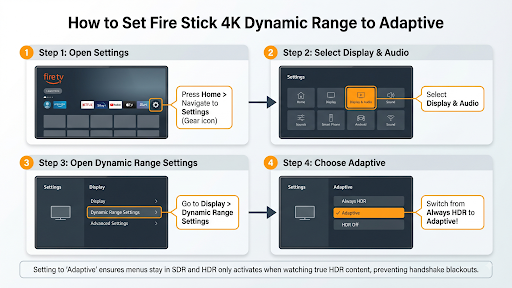
Switching from Always HDR to Adaptive is the single most effective fix. Adaptive sends each title in its original format, so non-HDR menus and shows stay in SDR and only HDR content switches the TV into HDR mode.
- Press the Home button on your Fire TV remote.
- Go to Settings > Display & Audio. On older Fire OS builds, this menu is called Display & Sounds.
- Select Display > Dynamic Range Settings.
- Choose Adaptive.
- If the error continues, choose HDR Off as a test. This option is available on the Fire TV Stick 4K Max and newer models.
Pro Tip! If HDR Off makes the error disappear, you’ve confirmed the problem is the HDR signal path. Don’t stop there. Keep going with the HDMI fixes below so you can turn HDR back on and actually get the picture quality you pay for.
2. Turn HDR Off Inside the Netflix App Only
If you want HDR to keep working in Prime Video, Disney+, or other apps, you can switch it off just for Netflix. Netflix has a built-in HDR toggle on TVs and streaming devices:
- Open Netflix and choose your profile.
- On the home screen, press the Back button on your remote to open the menu.
- If the menu is at the top, go left to your profile icon and select Get Help > Video. If the menu is on the left, select Get Help at the bottom, then Video.
- Choose HDR Off.
- Play the title again.
This is a good workaround while you wait for a Fire OS or Netflix update, or while you shop for a better HDMI cable.
3. Clear the Netflix App Data and Cache
Because Netflix ties the 5.2.5 code to data stored on your device, clearing that data is the fix Netflix itself recommends.
- Go to Settings > Applications > Manage Installed Applications.
- Select Netflix.
- Select Force stop.
- Select Clear data, then Clear data again to confirm.
- Select Clear cache.
- Unplug the Fire Stick from power for 30 seconds, plug it back in, and sign in to Netflix again.
Important Point to be Considered! Clearing data signs you out and deletes any downloaded titles on that device. Keep your Netflix email and password handy before you start.
4. Check the HDMI Cable, Port, and Connection Path
Most HDR-only black screens end here. Netflix’s own HDMI troubleshooting list for this error includes reversing the cable ends, bypassing receivers, trying another port, and trying a new cable. Here’s how to do it the smart way:
- Plug the Fire Stick directly into the TV. Remove the soundbar, AV receiver, or HDMI switch from the chain for testing.
- Move to an HDCP 2.2 port. Check the label on your TV or the manual. It’s often HDMI 1, or a port marked 4K, HDR, or ARC/eARC.
- Use the HDMI extender that came in the box. It improves the signal and keeps the stick away from heat and interference behind the TV.
- Swap the cable if you’re using one. Use a Premium High Speed or Ultra High Speed HDMI cable, which is what Netflix recommends for 4K and HDR.
- Reverse the HDMI cable ends. It sounds odd, but Netflix lists it as an official step because some cables seat better one way.
- Test on another TV if you can. If HDR Netflix works on a second TV, the HDMI port on your main TV is likely the problem.
5. Turn On Your TV’s Enhanced HDMI Mode
Many 4K TVs ship with their HDMI ports in a basic mode that can’t receive full 4K HDR. If Netflix HDR fails no matter what cable you use, look for a setting like this on your TV:
| TV brand | Setting name to look for |
| Samsung | Input Signal Plus (in External Device Manager) |
| LG | HDMI Ultra HD Deep Colour |
| Sony | HDMI signal format: Enhanced format |
| Vizio | Full UHD Color |
| TCL and Hisense | HDMI Mode or HDMI 2.0 / Enhanced |
Menu names change between models and years, so check your TV’s manual if you can’t find it. Turn it on only for the port your Fire Stick uses.
6. Update Fire OS and the Netflix App
Amazon pushes Fire OS updates often, and several HDR playback bugs on the 4K Max were fixed this way.
- Go to Settings > My Fire TV (or Device & Software) > About.
- Select Check for Updates and install anything available.
- Then go to Settings > Applications > Appstore and make sure Automatic Updates is on, or update Netflix manually from its app page.
7. Uninstall and Reinstall Netflix
If clearing data didn’t help, a fresh install removes any broken app files. Go to Settings > Applications > Manage Installed Applications > Netflix > Uninstall, restart the stick, then download Netflix again from the Appstore. If the app gets stuck or refuses to come back, the same logic applies as in our guide on Netflix not reinstalling from the LG Content Store.
8. Power Cycle Everything and Reset Network Changes
Unplug the Fire Stick from the wall for at least 30 seconds. Netflix’s general restart guidance suggests leaving devices unplugged for up to 3 minutes if a quick restart doesn’t work. While you wait, restart your router too.
Also undo any network changes you made. Custom DNS, a VPN, or a proxy can break Netflix playback and trigger the 3.1.x versions of this error.
Does a Soundbar or AV Receiver Cause the Netflix HDR Black Screen?
Yes, it often does. Netflix says that if you’re watching with a streaming stick and an audio receiver, all three devices have to support 4K or HDR for HDR playback to work. Many older soundbars pass through 4K but not HDR10 or Dolby Vision.
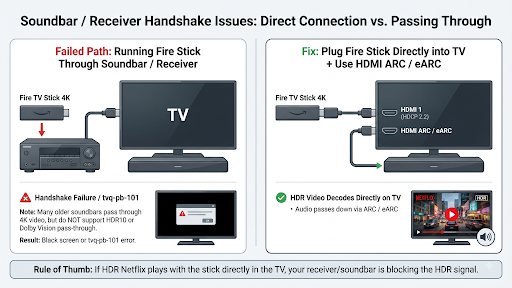
Here’s a simple test. Connect the Fire Stick straight to the TV and send audio to the soundbar through HDMI ARC or eARC instead. If HDR Netflix plays with the stick connected directly, your soundbar or receiver is the weak link.
Audio settings can play a part too. Some users report the error clears after changing the Fire Stick’s audio output from Dolby Atmos or passthrough to a simpler setting. You can test this under Settings > Display & Audio > Audio > Surround Sound. If audio is your main issue, our fix for Netflix buffering caused by the audio output setting explains how audio formats affect playback.
Why Do I Get a Netflix Black Screen With Sound on My Fire Stick?
A black screen with sound means Netflix is streaming fine, but the video signal isn’t being displayed. On a Fire Stick 4K, that nearly always points to the HDR or HDCP handshake failing, not your internet.
Try these quick checks:
- Press Home, then reopen the title. If the Fire TV menu shows but Netflix stays black, it’s an HDR or content protection issue.
- Switch Dynamic Range to Adaptive, or turn HDR off in the Netflix app as shown above.
- Play a non-HDR title. If it shows a picture, the HDR path is the problem.
- Move the stick to the HDCP 2.2 port on your TV.
If the screen goes black only at a certain point, such as the end of an episode on your phone, that’s a different bug. See our guide on the Netflix black screen at the end of an episode on iPhone for that one.
How Do You Check if Your TV and Fire Stick Actually Support Netflix HDR?
Use the Fire Stick’s built-in diagnostics tool. It tells you what your TV and connection really support, which saves you from guessing.
- Go to Settings > Display & Audio (or Display & Sounds).
- Select Audio/Video Diagnostics.
- Check the results for 4K, HDR10, and Dolby Vision support.
If the tool says HDR isn’t supported but your TV box says it is, the cable, port, or enhanced HDMI setting is blocking it. Amazon’s Dolby Vision and HDR troubleshooting page for Fire TV devices covers this tool and the follow-up checks.
Also confirm these Netflix basics:
- Your plan: 4K and HDR on Netflix are part of the Premium plan. On Standard or Standard with ads, you won’t see HDR at all.
- Your speed: Netflix recommends 15 Mbps or higher for 4K Ultra HD. You can test it in the app under Get Help > Check your Network.
- The title itself: look for the HDR, Dolby Vision, or HDR10+ label on the title’s page. Not every 4K title is in HDR.
What Should You Do if Nothing Fixes the Netflix HDR Error?
If you’ve changed HDR settings, cleared data, swapped cables, and updated everything, try these last steps before giving up on HDR.
- Adjust Color Depth and Color Format: under Settings > Display & Audio > Display, try a lower Color Depth (such as 10-bit or 8-bit) or switch Color Format between RGB and YCbCr. Some TVs reject the highest setting over HDMI.
- Set the resolution manually: in the same Display menu, pick 4K Ultra HD at 60Hz instead of Auto, or drop to 1080p to test.
- Factory reset the Fire Stick: Settings > My Fire TV > Reset to Factory Defaults. This wipes all apps and settings, so use it only as a last resort.
- Contact Netflix or Amazon support: share your Fire Stick model, Fire OS version, TV model, and the exact sub-code. Netflix’s help page notes that if the device maker can’t solve it, you may need to watch on another device.
Pro Tip! If you also get a black screen with audio in apps like Plex, Kodi, or Jellyfin, that’s a separate, well-documented issue. On the Fire TV Stick 4K Max, some local video files that carry both Dolby Vision and HDR10+ data play with sound but no picture. It doesn’t affect how Netflix works, so don’t let it send you down the wrong path.
Common Mistakes That Keep the Error Coming Back
- Leaving Dynamic Range on Always HDR. It forces everything into HDR and causes more problems than it solves on many TVs.
- Plugging the stick into a random HDMI port. Only some ports support HDCP 2.2 and full 4K HDR.
- Skipping the HDMI extender. It’s in the box for a reason, especially on TVs with tight port spacing.
- Testing only one title. Always test an HDR title and a non-HDR title so you know whether HDR is the real trigger.
- Ignoring the sub-code. A 3.1.x code needs network fixes, while a 5.2.x code needs device and HDMI fixes.
Frequently Asked Questions
Is Netflix error tvq-pb-101 (5.2.5) a Fire Stick 4K Max problem or a Netflix problem?
It’s usually a device-side problem. Netflix’s help center links the 5.2.5 code to data stored on the device, and on the 4K Max it most often appears with HDR titles. Amazon has also released Fire OS updates that addressed it, so keeping the stick updated is part of the fix.
Will turning off HDR on my Fire Stick make Netflix look worse?
Only on HDR titles. You’ll still get 4K resolution if your plan and TV support it, but you’ll lose the extra brightness and contrast range. Non-HDR shows look exactly the same, and some even look better because they’re no longer forced into an HDR container.
Does Netflix tvq-pb-101 delete my account or profile?
No. The error has nothing to do with your account. Your profiles, viewing history, and My List stay safe. Only clearing the app data on the Fire Stick signs you out locally and removes downloads on that device.
Why does Netflix HDR work on my TV’s built-in app but not on my Fire Stick?
The TV’s built-in app doesn’t use an HDMI cable, so there’s no HDCP handshake to fail. When Netflix HDR works on the built-in app but not on the Fire Stick, the HDMI port, cable, or enhanced HDMI setting is almost certainly the cause.
Can a VPN cause tvq-pb-101 on Fire Stick?
Yes, but usually as a 3.1.x network sub-code rather than 5.2.5. Turn off the VPN and reset any custom DNS or proxy settings, then try Netflix again.
What does tvq-pb-101 (5.2 undefined) mean?
It means the app couldn’t report a specific sub-code, but it’s still a device or connection playback failure. Treat it like 5.2.5: clear Netflix data, check HDR settings, and test the HDMI path.
Final Recommendation
Start by setting your Fire Stick’s Dynamic Range to Adaptive and clearing the Netflix app data. For most people, those two steps bring the picture back. If the black screen or tvq-pb-101 error returns on HDR titles, plug the stick straight into your TV’s HDCP 2.2 port with the extender and a high-speed HDMI cable, and turn on your TV’s enhanced HDMI mode. Use the in-app HDR Off switch only as a short-term workaround, so you can get back to watching Netflix in full HDR once the signal path is fixed.