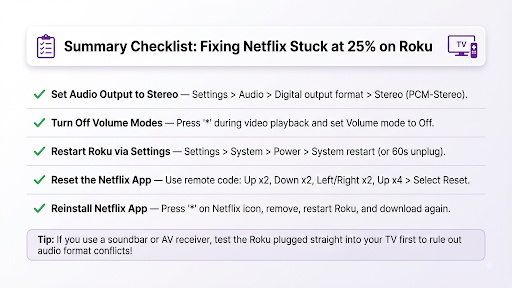
If Netflix keeps stopping at 25% on your Roku, change the audio first. Go to Settings > Audio > Digital output format and switch it from Auto or Custom to Stereo (some Roku TVs call it PCM-Stereo). Then restart the Roku and open the show again.
This one change fixes the freeze for a lot of Roku users, especially people who use a soundbar or AV receiver. If it doesn’t work for you, this guide walks you through the next fixes in order. You’ll also learn why an audio setting can stop a video from loading, and how to get surround sound back later.
Quick Overview
- Change the audio format: Settings > Audio > Digital output format > Stereo (or PCM-Stereo).
- Turn off Volume modes: During playback, press the * button and set Volume mode to Off.
- Restart the Roku: Settings > System > Power > System restart, or unplug it for about a minute.
- Reset the Netflix app: Get Help > Sign out, or use the Up, Up, Down, Down, Left, Right, Left, Right, Up, Up, Up, Up code and choose Reset.
- Reinstall Netflix and update Roku OS if the freeze keeps coming back.
- Check your network last if every app buffers, not just Netflix.
Why Does Netflix Keep Stopping at 25% on Roku?
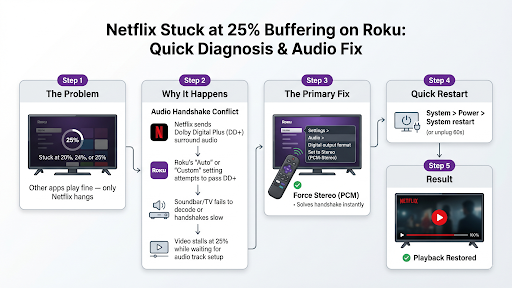
Netflix usually stops at 25% on Roku when the app can’t finish setting up playback. The audio stream is a common reason. The cause is often a mismatch between the audio format Netflix sends and the format your Roku is set to output.
Netflix doesn’t publish what each loading percentage means. But Roku users report the same pattern again and again. The progress circle climbs to 20%, 24%, or 25% and then sits there. Other apps like YouTube, Hulu, and Prime Video play fine. Netflix on a phone or laptop on the same Wi-Fi also works.
When only Netflix fails, and only on one Roku, the problem is almost never your internet. It’s usually one of these:
- The Digital output format is set to Auto or Custom, and the Roku and your soundbar or receiver can’t agree on a format
- Volume modes (Leveling or Night mode) are on, which changes how audio is handled
- Old cached data or a bad sign-in session inside the Netflix app
- Outdated Roku OS or Netflix app after an update
- An HDMI handshake problem between the Roku, TV, and sound system
How Can an Audio Setting Stop a Video From Loading?
Netflix has to pick an audio track your setup can play before the show starts. If that step fails, the video waits too, so you see the circle stuck at 25%.
Here’s the technical part in plain terms. Roku Community experts explain that Netflix sends surround audio on Roku in Dolby Digital Plus (DD+), not standard Dolby Digital. Most Roku players don’t convert DD+. They pass it on to your TV or sound system as is.
So if your Roku is set to Custom with only Dolby Digital checked, or Auto detects formats your soundbar can’t really handle, Netflix has to fall back to another track. Usually that’s fine. Sometimes it isn’t, and playback just hangs. Setting the output to Stereo gives Netflix one simple format that every TV and soundbar can play.
Important Point to be Considered! This is why the problem shows up so often on setups with a soundbar, home theater receiver, or optical cable. If your Roku plugs straight into the TV and you use the TV speakers, the audio fix may still help, but it’s less likely to be the cause.
How Do You Change the Digital Output Format on Roku to Fix Netflix Buffering?
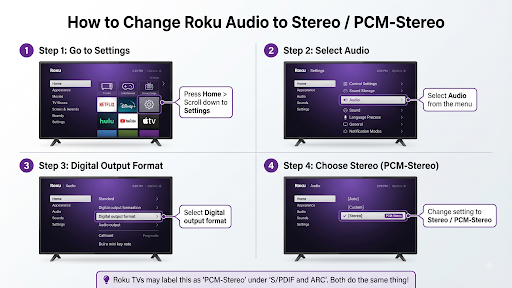
Open Settings, go to Audio, and set Digital output format to Stereo. The exact menu names change a little by model, so use the steps that match your device.
On a Roku Streaming Stick, Express, or Ultra
- Press the Home button on your Roku remote.
- Scroll down and select Settings.
- Select Audio.
- Select Digital output format. (On some models this is called Audio output or HDMI.)
- Change it from Auto or Custom to Stereo.
- Press Home, open Netflix, and play the same title that froze before.
On a Roku TV (TCL, Hisense, Roku-brand, Sharp, Insignia, and others)
- Press Home and open Settings.
- Select Audio.
- Look for Digital output format or S/PDIF and ARC.
- Choose PCM-Stereo or Stereo.
- Restart the TV and try Netflix again.
On Older Roku Menus
Netflix’s own help article for Roku gives slightly different labels. Go to Settings > Audio, set Audio mode to Stereo, then set HDMI to PCM-Stereo. If you don’t see HDMI, set S/PDIF to PCM-Stereo instead. You can see these steps in the Roku section of Netflix’s guide to choppy or distorted sound on Netflix.
Pro Tip! Highlight Digital output format before you change it. Many Roku models show the “formats detected” from your TV or soundbar on the right side of the screen. If you don’t see Dolby Digital Plus listed, that’s a strong clue your setup can’t take Netflix’s surround track, and Stereo is the right choice.
Should You Choose Stereo, PCM-Stereo, Auto, or Passthrough?
Pick Stereo or PCM-Stereo to fix the 25% freeze. Use the other options only once Netflix is working again and you want to test surround sound.
| Setting | What it does | Best for |
| Stereo / PCM-Stereo | Sends simple 2-channel audio that any TV or soundbar can play | Fixing Netflix stuck at 25% and other audio-related loading freezes |
| Auto | Roku detects what your TV or sound system supports and picks a format | Simple setups that work fine; often the setting in place when the freeze starts |
| Custom | You choose formats like Dolby Digital, DD+, or DTS by hand | Surround setups, but only if you select the formats your system truly supports |
| Passthrough (some models, like Roku Ultra) | Sends the app’s audio to your receiver or soundbar without changing it | Receivers and soundbars that decode Dolby formats themselves |
Not every Roku shows every option. For example, some streaming sticks don’t offer Passthrough, while the Roku Ultra does.
Why Does Netflix Stop at 20% or 24% Instead of 25%?
It’s the same problem. Depending on the Roku model, software version, and title, the loading screen may freeze at 20%, 24%, or 25%. The fixes in this guide apply to all three.
Many owners of TCL and Hisense Roku TVs describe the freeze at 24%, while Roku Ultra and Streaming Stick owners often see 25%. Some users notice it happens more on certain titles, like Netflix originals with surround or Atmos audio. That fits the audio explanation, since those titles are more likely to have DD+ tracks.
What If Changing the Audio Setting Doesn’t Fix It?
Work through these fixes in order. Test Netflix after each one so you know which step solved it.
1. Turn Off Volume Modes
Volume modes like Leveling and Night mode only work with stereo audio, so they can get in the way of Netflix’s surround track. To turn them off:
- Start any video on your Roku.
- Press the * (star) button on your remote.
- Set Volume mode to Off.
2. Restart Your Roku the Right Way
Pressing the power button on a Roku TV often only puts it in standby. Do a real restart instead:
- Go to Settings > System > Power > System restart. If you don’t see Power, go straight to System restart.
- Or unplug the Roku or Roku TV from the wall for about 60 seconds, then plug it back in.
3. Clear the Roku Cache With the Remote Shortcut
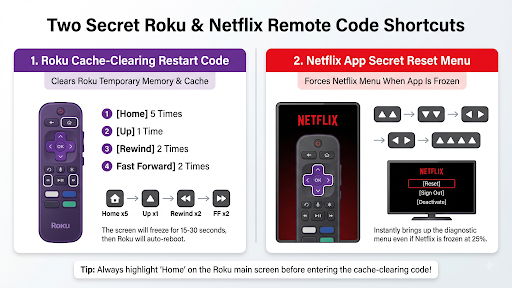
Roku doesn’t have a Clear Cache button in most menus. This remote sequence forces a restart that clears temporary data:
- Go to the Roku Home screen and make sure Home is highlighted on the left.
- Press Home 5 times.
- Press Up once.
- Press Rewind twice.
- Press Fast Forward twice.
The screen may freeze for up to 30 seconds before the Roku restarts. That’s normal.
4. Reset or Sign Out of the Netflix App
A stale Netflix session can stop playback even when the audio is fine. Open Netflix, go to the menu, select Get Help, then Sign out > Yes. Sign back in and try again.
If you can’t reach Get Help because the app is stuck, use this code on the remote inside Netflix: Up, Up, Down, Down, Left, Right, Left, Right, Up, Up, Up, Up. A menu appears with Sign out, Start Over, Reset, or Deactivate. Choose Reset or Sign out. Netflix lists this method in its guide to using Netflix on a Roku TV.
5. Remove and Reinstall Netflix
- On the Roku Home screen, highlight Netflix. Don’t open it.
- Press the * (star) button.
- Select Remove app (older menus say Remove channel) and confirm.
- Restart the Roku.
- Add Netflix again from Streaming Store (or Channel Store) and sign in.
Pro Tip! Restart the Roku between removing and reinstalling. If you reinstall right away, the Roku can sometimes pull the same cached files back.
6. Update Roku OS
Go to Settings > System > System update (called Software update on some models) and select Check now. Netflix updates itself through Roku, so updating the system also helps the app stay current.
7. Check Your HDMI Connection
If you use a soundbar or receiver, the audio handshake happens over HDMI or optical. Netflix and Roku both recommend a few cable checks:
- Plug the Roku straight into the TV for a test, skipping the receiver or soundbar
- Reverse the ends of the HDMI cable
- Try a different HDMI port, ideally one marked HDCP 2.2 or ARC/eARC if you use a soundbar
- Swap in a known-good Premium High Speed HDMI cable
If Netflix loads fine with the Roku plugged straight into the TV, your sound system’s audio format is almost certainly the trigger. Keep the output on Stereo, or set Custom to only the formats your sound system supports.
Netflix Keeps Buffering but the Internet Is Fine. Why?
If every other app plays smoothly, a slow connection is unlikely. The cause is usually the audio format, a stuck Netflix session, or old cache on the Roku. That’s why the fixes above come before any network steps.
Still, it’s worth a quick check, because the Roku’s own connection can be weak even when your phone shows full Wi-Fi bars:
- Go to Settings > Network > Check connection to run Roku’s test.
- Go to Settings > Network > About to see your signal strength.
- Netflix says streaming in Ultra HD needs a steady speed of 15 Mbps or more. Lower speeds can still play HD and SD.
- If you can, try an Ethernet cable on a Roku Ultra or Roku TV. It rules out Wi-Fi as a cause in about a minute.
If Netflix shows an error code instead of hanging at 25%, it’s more likely a network issue. A common one on Roku is the Netflix error NW-2-5 on Roku 5GHz Wi-Fi, which needs different fixes than the audio setting.
Why Does Netflix Freeze but the Sound Keeps Playing on Roku?
When the picture freezes but audio keeps going, the video stream is stalling, not the audio. This is a close cousin of the 25% problem and usually has the same fixes.
Start with a full restart, then the cache shortcut, then a Netflix reset. Some Roku users also report that switching between Wi-Fi and Ethernet changes the symptom, so testing a wired connection is worth a try. If the video only freezes on 4K content, lowering the Netflix playback quality on your account for that profile is a fair test too.
Can You Keep Surround Sound and Still Stop the 25% Freeze?
Yes, in many cases. Once Netflix plays reliably on Stereo, you can try surround again with settings that match your equipment.
- Go to Settings > Audio > Digital output format and highlight it to see which formats your system supports.
- If Dolby Digital Plus is listed, choose Custom and turn on DD+ (and Dolby Digital).
- If your Roku offers Passthrough and you use a receiver or soundbar that decodes Dolby audio, try Passthrough.
- In Netflix, open a title, go to Audio & Subtitles, and pick an option like English 5.1.
- Play the same title that froze before. If it hangs at 25% again, go back to Stereo.
Roku’s own guide to setting up a Roku player for surround sound explains which formats Roku players can pass through and how to set Custom.
Important Point to be Considered! If your TV or soundbar doesn’t support DD+ over HDMI or ARC, Netflix will only play in stereo anyway. In that case, leaving the Roku on Stereo costs you nothing.
Does This Happen on Other TVs and Streaming Devices?
Yes. People also search for Netflix stopping at 25% on Samsung TVs and other smart TVs. The same idea applies: check the TV’s sound output setting (often called Digital Output Audio Format or Sound Output), try PCM, then restart the TV and reset the Netflix app.
On other streaming devices the symptom can look different. On Amazon devices, an HDMI or format mismatch often shows up as a blank picture, like a Netflix black screen on Fire Stick 4K with HDR. On LG TVs, a reinstall can fail entirely, which is covered in our guide on Netflix not reinstalling from the LG Content Store.
What Mistakes Make the 25% Freeze Harder to Fix?
- Resetting the router first. If only Netflix freezes, your network is rarely the cause. Fix the audio setting first.
- Using the power button as a restart. On Roku TVs, this often just puts the TV in standby. Use System restart or unplug it.
- Testing a different title each time. Always test the title that froze. Some titles have different audio tracks, so a new title can hide whether the fix worked.
- Setting Custom without checking support. Turning on only Dolby Digital forces Netflix off its DD+ track. Check “formats detected” first.
- Jumping to a factory reset. A factory reset wipes your apps, sign-ins, and settings. Try every step above first.
When Should You Contact Roku or Netflix Support?
Contact support if Netflix still stops at 25% after you’ve set Stereo, turned off Volume modes, reset Netflix, reinstalled it, and updated Roku OS. At that point it may be a known app or firmware bug that only an update can fix.
Have these details ready to speed things up:
- Your Roku model and software version (Settings > System > About)
- The Netflix app version (highlight Netflix on the Home screen and press *)
- Whether you use a soundbar or receiver, and how it connects (HDMI ARC, eARC, or optical)
- Whether it happens on every title or only certain ones
- The exact percentage where it stops (20%, 24%, or 25%)
FAQs
Will changing the Roku audio to Stereo make my sound worse?
Only if you have a real surround setup. With TV speakers or a basic 2.0 soundbar, you won’t hear a difference. With a 5.1 system, you’ll lose the rear channels until you set up Custom or Passthrough again.
Do I need to change the audio setting back after Netflix starts working?
No. You can leave it on Stereo for good. Change it back only if you want surround sound, and test the title that froze before to make sure the freeze doesn’t return.
Will a factory reset fix Netflix stuck at 25% on Roku?
Sometimes, but it’s rarely needed. It erases all apps, sign-ins, and settings. And if the audio setting was the cause, you could set the same option again during setup and get the same freeze. Use it only as a last resort.
Does the Digital output format affect other apps like YouTube or Hulu?
Yes, it applies to every app on the Roku. Stereo works with all of them, so other apps will still play normally. They’ll just play in two-channel audio instead of surround.
Is Netflix stuck at 25% a problem with my Netflix account?
Almost never. If Netflix plays on your phone or laptop with the same account, your account and plan are fine. The issue is on the Roku side: its audio settings, app data, or software.
Why did the 25% freeze start after a Roku update?
Updates can change how Roku detects your TV or soundbar’s audio formats, or reset audio settings. That can create a new mismatch overnight. Re-check Digital output format after any big update, and restart once more so the new settings take hold.
Final Recommendation
Start with the fastest fix: Settings > Audio > Digital output format > Stereo, then restart your Roku and replay the same title. If you use a soundbar or receiver, this alone solves it most of the time. If not, turn off Volume modes, clear the cache with the remote shortcut, reset Netflix, and reinstall the app, in that order. Leave network and factory reset steps for last, since they rarely fix a freeze that only affects Netflix.