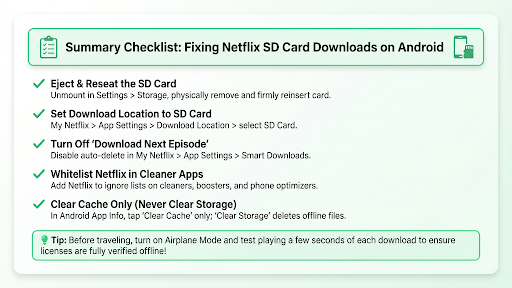
When Netflix downloads disappear or fail to play offline on Android SD card storage, the cause is usually one of five things: the SD card dropped or remounted, a cleaner app wiped Netflix data, the download expired, Smart Downloads deleted a watched episode, or the download location quietly switched back to internal storage. Most cases are fixed by reseating the SD card, setting the download location back to the SD card, and downloading the title again over stable Wi-Fi.
This guide walks you through each cause, the exact error codes Netflix shows on Android, and the settings that keep your offline library safe before a flight, road trip, or commute.
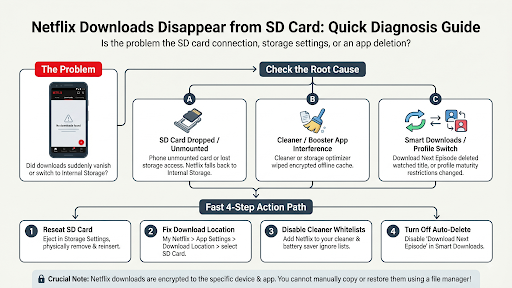
Quick Overview
| What you see | Most likely cause | Fastest fix |
| Downloads tab is empty after a restart | SD card did not mount properly, or a cleaner app cleared Netflix data | Eject and reseat the SD card, turn off cleaner apps, re-download |
| Download location keeps switching back to internal storage | Netflix can’t detect or write to the SD card | Reseat the card, check storage permission, try a different card |
| Title shows “Expired” | Licensing window ended | Go online, delete the download, download it again |
| Watched episode vanished | Download Next Episode (Smart Downloads) removed it | Turn off Download Next Episode in App Settings |
| Error 2.119, -103, CM:12646, or DLS.101 | Device change, connection drop during download, or stale license data | Connect to the internet, delete the title, download it again |
| OF.NA.5 “external storage was not found” | Netflix can’t see the SD card | Reseat or replace the card, or switch to internal storage |
Why Do Netflix Downloads Disappear From an SD Card on Android?
Netflix downloads usually disappear from an SD card because the app lost access to the card or its own data was erased. Netflix stores downloads as encrypted files tied to the app, so anything that resets the app or breaks the connection to the card makes the Downloads tab look empty.
According to Netflix, all downloads on a device are deleted when the Netflix app is uninstalled or reset, and when the app’s data is cleared. Here are the common triggers on Android phones and tablets:
- SD card mount glitch: After a reboot, a system update, or a drop, the phone may read the card late or not at all. Netflix then shows no downloads, or it resets the download location to internal storage.
- Cleaner or booster apps: Apps that “free up space” can clear Netflix app data. When that happens, every download on the phone and the SD card is gone.
- Clearing storage instead of cache: Tapping Clear storage or Clear data in Android settings deletes downloads and signs you out. Clearing only the cache is generally safe for downloads.
- Profile maturity rating: A title may not show in Downloads if its maturity rating is higher than what the current profile allows. This catches a lot of people using a Kids profile.
- Storage permission turned off: On older Android versions, Netflix needs the Storage permission to read downloads from the SD card.
- Account changes: If you cancel your membership, downloads on your device are deleted. Signing out of Netflix also blocks access to them.
- Smart Downloads: Download Next Episode deletes episodes you’ve finished and grabs the next one. That looks like a “missing download” if you didn’t know the feature was on.
Important Point to be Considered! Netflix downloads are not regular video files. You can’t open them in a gallery app, and you can’t restore them by copying a folder back onto the SD card. If they’re gone from the app, the only real fix is to download them again.
How Do You Fix Netflix Downloads Missing From an Android SD Card?
Start with the SD card itself, then check Netflix’s settings, then rule out anything that clears app data. Follow these steps in order, because each one removes a common cause.
Step 1: Eject and Reseat the SD Card
Reseating the card forces Android to remount it cleanly. Netflix’s own SD card troubleshooting guide recommends this first.
- Open the Settings app on your Android device.
- Tap Storage (on some phones it’s Storage & USB or Device care > Storage).
- Select your SD card and tap Eject or Unmount.
- Turn off the phone completely.
- Remove the SD card tray or back cover, take the card out, and put it back in firmly.
- Turn the phone back on and open Netflix.
Step 2: Set the Download Location Back to the SD Card
If Netflix couldn’t find the card at startup, it may have switched to internal storage on its own. Your old downloads won’t show until the location points to the card again.
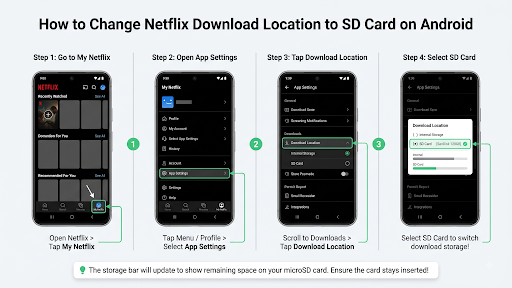
- Open the Netflix app.
- Tap My Netflix in the lower right.
- Tap the Menu icon or your profile name at the top (this depends on your app version).
- Tap App Settings.
- Under Downloads, tap Download Location and choose your SD card.
Pro Tip! The App Settings screen also shows a storage bar for the selected location. If it shows zero Netflix usage on the SD card, the downloads were actually removed, not just hidden.
Step 3: Turn On the Storage Permission (Older Android Versions)
- Go to Settings > Apps (or Apps Manager).
- Find and tap Netflix.
- Tap Permissions.
- Switch Storage to On or Allow.
- Reopen Netflix and check your downloads.
On newer Android versions, you may not see a Storage permission for Netflix at all. That’s normal, so skip this step if it isn’t listed.
Step 4: Turn Off Cleaner, Booster, and Battery Saver Apps
Apps that clean junk files or clear app data on a schedule are one of the most common reasons Netflix downloads keep disappearing. Turn them off, or add Netflix to their ignore or whitelist, then download your titles again. Also check built-in tools such as automatic storage cleanup on Samsung, Xiaomi, and other phones, since some of them can clear unused app data.
Step 5: Check the Profile You’re Using
Downloads are saved to the device, and you can view them from any Netflix profile on that device. But if you switched to a Kids profile or one with a lower maturity rating, some titles won’t appear. Switch back to the profile you used to download, or go to My Netflix > profile name > Manage Profiles > Edit > Viewing Restrictions to check the rating.
Step 6: Download the Title Again
If none of the above brings the downloads back, connect to Wi-Fi and download them again. Use a strong, steady connection. A dropped connection during download is a leading cause of files that look complete but won’t play later.
Why Won’t Netflix Downloads Play Offline on an SD Card?
Netflix downloads that won’t play offline are usually expired, incomplete, or tied to license data that no longer matches your device. The file may still be on the SD card, but Netflix refuses to play it until it can check in online.
The Download Has Expired
Every Netflix download expires after a set amount of time, and the time left shows on the Downloads page. Some titles expire as soon as 48 hours after you first press play, while others last longer. The window is set by each studio’s license, so it varies by title.
To renew an expired download on Android, Netflix says to delete the download and download it again while connected to the internet. Titles that have left Netflix can’t be renewed at all.
The Download Was Interrupted
If the connection dropped during the download, the title can show up but fail to play. Netflix links error -103 to a connectivity issue during the download. Delete the title and download it again on a stable network. If your home Wi-Fi drops often on one band, switching between 2.4 GHz and 5 GHz can help, a fix that also comes up with Netflix error NW-2-5 on 5GHz Wi-Fi.
Something Changed on Your Phone or SD Card
Netflix error 2.119 means the download can’t play because of a change on your Android device. Swapping SD cards, reformatting a card, restoring a backup, or a major Android update can all trigger it. The fix is to connect to Wi-Fi or mobile data and download the title again.
Date and Time Are Wrong
Netflix checks how long your download has left. If your phone’s clock is off, for example after the battery fully drained, license checks can fail. Go to Settings > System > Date & time and turn on Set time automatically.
You’re Signed Out
You need to stay signed in to your Netflix account to watch downloads offline. If you were signed out after clearing app data or changing your password, sign back in while online. You’ll likely need to download your titles again.
What Do Netflix Download Error Codes Mean on Android?
Netflix error codes tell you exactly which part of the download failed. Here are the codes Android users run into most with offline downloads and SD card storage.
| Error code | What it means | What to do |
| OF.NA.5 | External storage (SD card) was not found | Reseat the SD card, try another card, or use internal storage |
| 2.119 | A change on your Android device stopped the download from playing | Go online and download the title again |
| -103 | A connection problem happened while the title was downloading | Delete and re-download on stable Wi-Fi |
| CM:12646 | Stored download info on your device needs a refresh | Delete the title and download it again |
| DLS.2 / DLS.101 | A problem with the download, often tied to network connection | Reconnect to the network, restart the phone, re-download |
| NQL.22005 | Too many downloaded videos | Delete some downloads, then try again |
| NQL.23000 / 10016-23000 | Downloads on too many devices for your plan | Remove a device from Manage Download Devices |
| NQL.22003 | Too many downloads in a short time | Wait a while, then download again |
| Download Limit Warning | This title can only be downloaded a limited number of times per year | Download once more, or stream it when you’re online |
Pro Tip! If you see a code that isn’t listed here, search the exact code in the Netflix Help Center. Codes are device-specific, so an iPhone code won’t always apply to Android.
Why Does Netflix Keep Switching the Download Location Back to Internal Storage?
Netflix switches back to internal storage when it can’t detect the SD card or can’t write to it. Tapping “SD card” and watching it snap back to “Internal Storage” is a sign the problem is with the card or how the phone reads it, not with your Netflix account.
Try these fixes:
- Reseat the card using the eject steps above.
- Try a different SD card. If a second card works, your original card may need formatting or replacement.
- Back up and reformat the card as portable storage in your phone’s Storage settings. Only do this after copying your photos and files elsewhere, because formatting erases everything.
- Update Netflix and Android from the Play Store and system settings.
- Clear the Netflix cache under Settings > Apps > Netflix > Storage & cache > Clear cache.
If none of this works, Netflix says your device or SD card may simply not support storing downloads on external storage. In that case, use internal storage for downloads.
Important Point to be Considered! Not every Android phone with a microSD slot supports Netflix downloads on the card. Netflix has never published a full list of supported devices, so testing with a known good card is the only reliable check.
Should You Use Your SD Card as Portable or Internal (Adoptable) Storage?
For Netflix downloads, portable storage is usually the safer choice. Portable storage keeps the SD card as a separate drive you can pick in Netflix’s Download Location setting.
Some phones let you format the card as internal (adoptable) storage, which merges it with the phone’s built-in memory. That can work, but it ties the card to that one phone. If the card is removed, fails, or gets moved to another device, apps and data stored on it can break, including your downloads.
| Setup | Good for | Watch out for |
| Portable storage | Choosing “SD card” in Netflix, swapping cards, easy troubleshooting | Card must stay mounted, or downloads won’t show |
| Internal (adoptable) storage | Phones with very small built-in memory | Card can’t be removed or used in another device without losing data |
Pro Tip! Keep the Netflix app itself on internal storage, even if your phone lets you move apps to the SD card. Download your movies and shows to the card, but let the app live on the phone. If the card mounts late, the app still opens normally.
How Do You Stop Smart Downloads From Deleting Episodes?
Turn off Download Next Episode in Netflix’s Smart Downloads settings. When it’s on, Netflix deletes an episode after you finish watching it and downloads the next one on Wi-Fi.
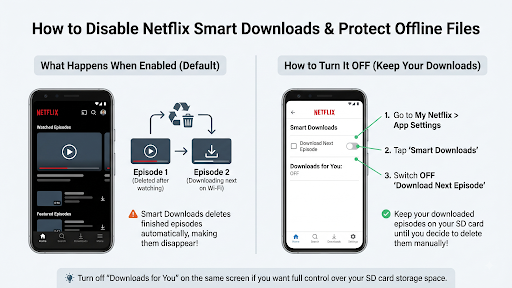
- Open Netflix and tap My Netflix.
- Tap the Menu icon, then App Settings.
- Under Downloads, tap Smart Downloads.
- Switch off Download Next Episode.
The same screen has Downloads for You, which adds titles Netflix thinks you’ll like. Turn it off too if you want full control over what’s stored on your SD card. Smart Downloads isn’t available on ad-supported plans, so if you’re on Standard with ads, this isn’t why your downloads disappeared.
Are There Netflix Download Limits That Make Titles Vanish?
Yes. Netflix limits how many titles you can download, how many devices can hold downloads, and how often some titles can be downloaded. These limits don’t silently delete files, but they can stop new downloads and make it seem like something is broken.
- Ad-free plans: Up to 100 active downloads at a time per device.
- Ad-supported plans: 15 total downloads per device per calendar month.
- Device limit: The number of devices that can hold downloads depends on your plan. You can see and remove devices on the Manage Download Devices page.
- Per-title limits: Some studios cap how many times a title can be downloaded per year on your account.
Here’s a real scenario: you download a season on your tablet’s SD card, then download a few movies on your phone. If your plan only allows two download devices and a family member also downloads on theirs, the next attempt fails with a “too many devices” error. Removing an old device from the list fixes it right away.
How Do You Keep Netflix Downloads Safe Before a Trip?
Download everything a day or two before you leave, then open each title briefly while you’re still online. That way, expired or broken downloads show up while you can still fix them.
- Use stable Wi-Fi and keep the phone plugged in while downloading.
- Play a few seconds of each download with Wi-Fi on, then test one with airplane mode on.
- Check the time left on the Downloads page. Short windows can run out mid-trip.
- Don’t eject, swap, or reformat the SD card after downloading.
- Turn off cleaner apps and auto storage cleanup until you’re back.
- Stay signed in. Don’t change your Netflix password right before you go, because that can sign out your devices.
- Leave free space on both the SD card and internal storage, since the app still needs room to run.
If your downloads play fine on your phone but you hit a black screen at the end of an episode on another device, that’s usually a separate playback issue. For example, iPhone users can check this guide on fixing a Netflix black screen at the end of an episode on iPhone.
Should You Reinstall Netflix to Fix SD Card Download Problems?
Reinstall Netflix only as a last step, because uninstalling deletes every download on the phone and the SD card. It does help when the app is stuck, keeps crashing on the Downloads tab, or won’t recognize the card after an update.
- Make sure you know your Netflix email and password.
- Uninstall Netflix from Settings > Apps > Netflix > Uninstall.
- Restart your phone.
- Reinstall Netflix from the Google Play Store and sign in.
- Set Download Location to your SD card before downloading anything.
Reinstall trouble isn’t limited to phones, either. If you also watch on a smart TV, here’s how to handle it when Netflix won’t reinstall from the LG Content Store.
Common Mistakes That Make Netflix SD Card Downloads Disappear
- Tapping “Clear storage” instead of “Clear cache.” One removes temporary files. The other wipes your downloads and signs you out.
- Removing the SD card without ejecting it. This can corrupt files and confuse the Netflix app.
- Trying to copy Netflix files with a file manager. The files are encrypted and tied to the app, so copied files won’t play.
- Using a cheap or worn-out SD card. Slow or failing cards are more likely to drop out, especially during long downloads.
- Downloading on weak public Wi-Fi. Interrupted downloads lead to errors like -103 later, when you’re offline.
- Forgetting about Download Next Episode. Watched episodes vanish by design when it’s on.
Frequently Asked Questions
Can I store Netflix downloads on an SD card?
Yes, on most Android phones and tablets and on Amazon Fire tablets with an SD card slot. Set it in My Netflix > App Settings > Download Location. If the SD card option doesn’t appear or won’t stay selected, your device or card may not support it, and you’ll need to use internal storage.
Why did my Netflix downloads disappear after a phone update?
A major Android update can remount the SD card or reset app permissions, and Netflix may lose track of the files. Check that the download location still points to your SD card and that storage permission is on. If titles show error 2.119 or won’t play, download them again while online.
Where are Netflix downloads stored on an Android SD card?
They’re saved in a hidden Netflix folder inside the Android app data area on the card. You can’t play or move them with a file manager or gallery app. The only way to watch them is through the Downloads section of the Netflix app.
Can I move my SD card with Netflix downloads to another phone?
No. Downloads are linked to the device and Netflix app that downloaded them, so they won’t play in a different phone. You’ll need to download the titles again on the new device.
Does clearing the Netflix cache delete downloads?
Clearing the cache generally doesn’t delete downloads. Clearing storage or app data does, and it also signs you out. If you’re unsure which button you’re tapping, choose Clear cache only.
Why do Netflix downloads say “not available to watch offline”?
The title’s license may have expired, it may have been removed from Netflix, or it may have hit its yearly download limit. Connect to the internet and try downloading again. If Netflix says you can’t, you’ll have to stream it instead.
Do Netflix downloads work if my subscription lapses?
No. If you cancel your membership, downloads on your device are deleted. When you restart your membership, you’ll have to download them again.
Final Recommendation
If your Netflix downloads disappeared from your SD card, eject and reseat the card first, then set Download Location back to the SD card and turn off any cleaner apps. If downloads show up but won’t play offline, connect to Wi-Fi, delete the affected titles, and download them again. When the SD card option keeps switching back to internal storage even with a new card, your phone likely doesn’t support Netflix downloads on external storage, so internal storage is the reliable choice. Before any trip, test a download in airplane mode so you find problems while you can still fix them.