
If Netflix plays sound but the picture goes black the moment the Dolby Vision logo pops up on your LG OLED, the TV is usually losing the video signal during the switch into Dolby Vision. The most common fixes are a full power cycle, turning on HDMI Ultra HD Deep Colour for the right HDMI port, and turning off frame rate matching on your streaming box. In most homes, one of those three solves it.
This guide walks you through every fix in the right order, whether you use the built-in LG Netflix app or an Apple TV 4K, NVIDIA Shield, Roku, Fire TV Stick, or game console plugged into the TV.
Quick Overview
| What you see | Most likely cause | First fix to try |
| Black screen with sound in the built-in LG Netflix app | App or TV software glitch | Unplug the TV, hold the power button, sign out of Netflix, update webOS |
| Dolby Vision logo flashes, then the screen goes black (external box) | HDMI handshake fails during the format switch | Turn on HDMI Ultra HD Deep Colour for that port and use an Ultra High Speed HDMI cable |
| Screen blacks out every 30 to 60 seconds, then comes back | Frame rate or dynamic range switching | Turn off Match Frame Rate on Apple TV or similar setting on your box |
| Black screen only through a soundbar or AV receiver | HDCP or Dolby Vision pass-through drop | Plug the streaming device straight into the TV |
| Only one Netflix title goes black | Title-specific stream or DRM issue | Test other Dolby Vision titles, then report the title to Netflix |
Why Does Netflix Play Audio but Show a Black Screen on LG OLED?
Netflix shows a black screen with sound when the audio stream reaches your TV but the video signal doesn’t. Netflix’s own black screen with sound guide says this usually means an issue with your device or a video cable stopped Netflix from showing video.
Dolby Vision makes this more likely for a simple reason. When you press play on a Dolby Vision title, your TV or streaming box has to switch picture formats on the fly. That switch can force the HDMI connection to renegotiate. If anything in the chain stumbles, the picture drops while the sound keeps going.
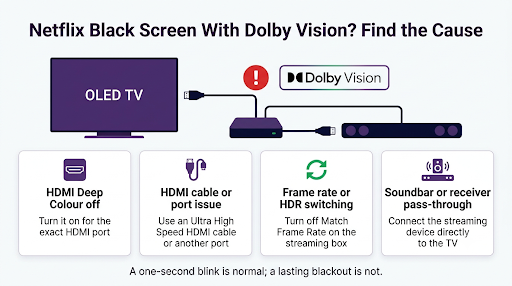
Here are the usual suspects:
- HDCP handshake failure. Netflix uses copy protection (HDCP 2.2 for 4K and HDR). If the TV, cable, soundbar, or box fails the check, video gets blocked.
- HDMI bandwidth limits. 4K Dolby Vision needs more bandwidth. An older cable or a port without enhanced mode turned on can fail right when Dolby Vision kicks in.
- Frame rate and dynamic range switching. Boxes that match content (for example, 24fps films or SDR to Dolby Vision) can cause repeated blackouts.
- App or firmware bugs. A stuck Netflix app session or outdated LG webOS software can break the video pipeline.
- Pass-through devices. AV receivers, soundbars, and HDMI splitters sit in the middle of the handshake and often cause the drop.
Important Point to be Considered! A short blink of black for a second or two when Dolby Vision turns on is normal. That’s the TV switching modes, often called an “HDMI bonk.” The problem this guide fixes is when the screen stays black, or keeps blacking out, while audio continues.
Is It Your LG TV Screen or the Video Signal?
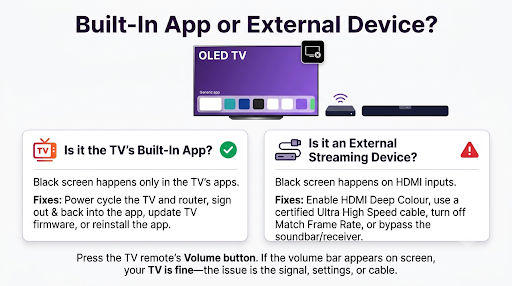
Press the volume button on your LG remote while the screen is black. If the volume bar shows up, your OLED panel is working, and the problem is the video signal from Netflix or your external device.
This is the same test LG’s sound but no picture troubleshooting page recommends. Use the LG remote for this test, not your streaming box remote, or the result won’t be accurate.
- Volume bar appears: Keep going with the fixes below.
- Volume bar does not appear, even on the home screen: The TV itself may need service. Contact LG support.
How Do You Fix a Netflix Black Screen in the Built-In LG Netflix App?
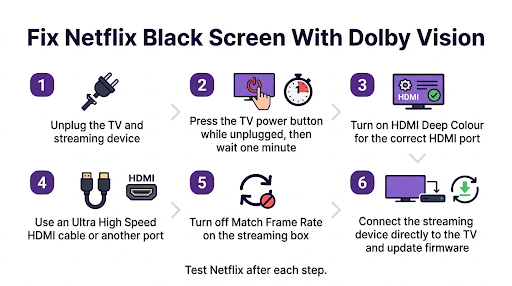
Start with a hard power reset, then sign out of Netflix and update your TV software. These three steps clear most app-side glitches on LG webOS.
1. Do a Full Power Cycle
- Unplug your LG OLED from the wall outlet.
- While it’s unplugged, press and hold the physical power button on the TV for about 10 seconds. This is LG’s official hard reset step and drains leftover power.
- Wait at least a minute, then plug the TV back in and turn it on.
- Also restart your router if Netflix in the built-in app keeps failing, since LG notes that streaming apps on the TV pull content directly over the internet.
Pro Tip! Turning the TV off with the remote isn’t the same thing. LG OLEDs go into standby, so the software doesn’t fully restart. Pulling the plug is what clears the glitch.
2. Sign Out of Netflix and Sign Back In
- Open Netflix and go to the home screen.
- Press the Back button to open the menu.
- Select Get Help, then Sign out, then Yes.
- Sign back in and play a Dolby Vision title again.
Most LG webOS versions don’t offer a simple “clear cache” button for the built-in Netflix app, so signing out is the closest way to reset the app’s stored data.
3. Update LG webOS Software
Go to Settings > All Settings > Support > Software Update (on some models it’s under General > About This TV) and check for updates. Turn on automatic updates while you’re there. LG has fixed Dolby Vision playback bugs through firmware updates before, so an outdated TV is worth ruling out.
4. Test a Different Picture Mode
When Dolby Vision content plays, LG switches to Dolby Vision picture modes such as Cinema, Filmmaker Mode, or Vivid. Press the settings button during playback and try a different mode. Also turn off Energy Saving under picture or general settings. If one mode works and another goes black, reset that picture mode to its defaults.
Why Does the Screen Go Black Right After the Dolby Vision Logo Appears?
If the Dolby Vision badge shows in the top right corner and then the picture disappears, your TV detected Dolby Vision but couldn’t keep the signal stable. With external devices, this almost always points to HDMI port settings or the cable.
Turn On HDMI Ultra HD Deep Colour for the Correct Port
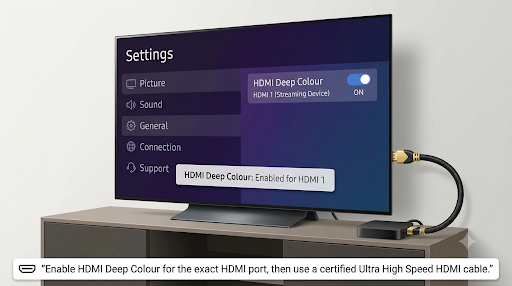
LG OLEDs only accept full 4K HDR and Dolby Vision signals on ports where HDMI Ultra HD Deep Colour (called HDMI Deep Colour on newer models) is turned on. It’s set per port, so it has to be on for the exact port your device uses.
- Older LG OLEDs (around 2017 to 2021): Settings > All Settings > Picture > Additional Settings > HDMI Ultra HD Deep Colour
- Newer LG OLEDs (around 2022 and later): Settings > All Settings > General > Devices > HDMI Settings > HDMI Deep Colour
Set it to On (or 4K) for your port, then restart the streaming device. Menu names change slightly by model year, so look for “Deep Colour” if your path is a little different.
Important Point to be Considered! Some owners find the black screen stops when they turn Deep Colour off, but then Dolby Vision and HDR stop working too. That’s a sign the real problem is the cable or the port, not the setting. Don’t leave it off as a permanent fix.
Use the Right HDMI Cable and Port
- Use a certified Ultra High Speed HDMI cable (48Gbps). At a minimum, use a certified Premium High Speed cable.
- Try reversing the cable ends. Netflix lists this as an official step, and it fixes more cases than you’d expect.
- Move the device to another HDMI port on the TV.
- Keep cable runs short. Long or cheap cables are a common cause of Dolby Vision dropouts.
- Remove HDMI splitters, switches, and adapters from the chain while testing.
How Do You Fix the Black Screen on Apple TV 4K With an LG OLED?
On Apple TV 4K, the most reliable fix is turning off Match Frame Rate, then setting the video format to 4K SDR with Match Dynamic Range on. That way the box only switches into Dolby Vision when the content actually needs it.
- Go to Settings > Video and Audio > Format and choose 4K SDR.
- Open Match Content. Turn Match Dynamic Range on.
- Turn Match Frame Rate off and test Netflix again.
- If your Apple TV 4K (2022) and LG OLED both support it, try turning on Quick Media Switching under Match Content. LG added QMS support starting with select 2023 models like the C3, B3, and G3.
- If the issue continues, use Reset Video Settings under Video and Audio, then repeat these steps.
Owners of LG OLEDs from the C9 to the G1 and B3 report the same pattern: the screen blacks out every 30 to 60 seconds, the Dolby Vision logo reappears, and the picture comes back. Turning off Match Frame Rate or updating the TV firmware usually ends it.
Pro Tip! Leaving your Apple TV set to 4K Dolby Vision all the time can cause black screens right at power-on, because the TV starts in Dolby Vision before it’s ready. Setting 4K SDR with dynamic range matching avoids that.
How Do You Fix It on NVIDIA Shield, Roku, Fire TV, or a Game Console?
The fix depends on the device, but the idea is the same. Reset any display adjustments, then temporarily switch away from Dolby Vision and back.
NVIDIA Shield TV
- Reset Adjust for overscan to default under Settings > Device Preferences > Display & Sound > Advanced settings. NVIDIA’s forums link changed overscan settings to black screens with audio on some Dolby Vision content.
- Make sure Dolby Vision is enabled only if your TV supports it at your chosen mode. Under Custom display mode, pick a mode labeled “Dolby Vision Ready.”
- Toggle Match content frame rate off as a test.
Roku
Roku users report a simple workaround: change the display type to anything other than Dolby Vision, then change it back. If your Roku shows black screens on 4K HDR content more broadly, see our guide on how to fix Netflix black screen in 4K HDR on Roku for device-specific steps.
Fire TV Stick 4K
- Unplug the stick for one minute and check for Fire OS updates.
- Clear the Netflix app cache under Settings > Applications > Manage Installed Applications > Netflix.
- Under Display & Sounds, set Dynamic Range Settings to Adaptive instead of Always HDR, then test Netflix again.
PlayStation or Xbox
Netflix’s help center suggests turning HDR off on PS4 (Settings > Sound and Screen > Video Output Settings > HDR > Off) when you get a black screen with sound. If that fixes it, the console’s HDR handshake with your LG port is the issue, so recheck Deep Colour and the cable before turning HDR back on.
Can a Soundbar or AV Receiver Cause Netflix Black Screen With Dolby Vision?
Yes. A soundbar or receiver that sits between your streaming device and the LG OLED can drop the HDCP or Dolby Vision signal, leaving you with audio and no picture.
- Connect the streaming device directly to the TV with HDMI.
- Send audio to the soundbar from the TV’s eARC/ARC port instead.
- Test Netflix in Dolby Vision. If it works, your receiver or soundbar doesn’t pass Dolby Vision properly.
- If you want to keep the receiver in the chain, set its video mode to “passthrough” so the TV does all the video processing, and update the receiver’s firmware.
Moving to an eARC setup fixes the picture, but it can create lip sync problems with some soundbars. If your dialogue starts running ahead of or behind the picture after the change, our guide on fixing Netflix audio sync over eARC covers the delay settings that help.
What If Netflix Shows Subtitles but No Video?
If subtitles and the Netflix player controls show up but the video stays black, the app is running fine. The video stream itself is being blocked, which points to HDCP copy protection or the Dolby Vision decoder failing on that playback.
This is a helpful clue. It tells you to skip app reinstalls and go straight to the HDMI fixes above: Deep Colour, cable, direct connection, and frame rate matching. On the built-in LG app, a full power cycle and webOS update are the best bets.
What If Only One Netflix Title Goes Black?
If one show or movie goes black while every other Dolby Vision title plays fine, the problem is probably that specific stream, not your TV.
- Play two or three other Dolby Vision titles to confirm.
- Search Netflix for Test Patterns and play it. It’s a quick way to check that your setup handles high-quality video.
- Try the same title on another device, such as your phone.
- If only that title fails everywhere, report it through Netflix’s help center so they can check the stream.
Does Your Netflix Plan Affect Dolby Vision?
Yes. Netflix only streams Ultra HD and HDR, including Dolby Vision, on the Premium plan. Your plan won’t cause a black screen on its own, but it explains why you might not see the Dolby Vision badge at all on a lower plan. If Dolby Vision never triggers, that’s a different issue from the black screen.
Common Mistakes That Keep the Problem Coming Back
- Turning off Deep Colour permanently. It hides the symptom but kills HDR and Dolby Vision.
- Using the old cable that came with an older device. It may not handle 4K Dolby Vision bandwidth.
- Forgetting that Deep Colour is per port. Turning it on for HDMI 1 does nothing if your box is in HDMI 3.
- Only restarting with the remote. LG OLEDs need to be unplugged to fully reset.
- Testing through the receiver. Always test with the device connected directly to the TV first.
- Screen mirroring Netflix. Netflix no longer supports AirPlay or screen mirroring, so a black screen there is expected. Use the TV’s app or cast from the Netflix app instead.
When Should You Contact LG or Netflix Support?
Contact LG if the volume bar doesn’t appear during the black screen, or if the problem happens on every input and every app after you’ve updated the TV. Contact Netflix if the black screen happens only in Netflix and only on certain titles after you’ve tried everything above.
Before you call, write down your LG OLED model (for example, OLED65C3PUA), your webOS version, the streaming device and its software version, and whether a soundbar or receiver is connected. Support can help you much faster with that information.
Frequently Asked Questions
Why does my LG OLED go black for a second when Dolby Vision starts on Netflix?
A one or two second blackout is normal. The TV is switching from SDR or HDR10 into Dolby Vision mode and resyncing the HDMI signal. It only needs fixing if the screen stays black or keeps blacking out while audio plays.
Does turning off Dolby Vision fix the Netflix black screen?
Often, yes, and that’s a useful test. If the picture returns in HDR10, the issue is the Dolby Vision switch. Treat it as a temporary workaround, though, and fix the cable, Deep Colour, or frame rate setting so you can turn Dolby Vision back on.
Why does Netflix go black on my LG C3 but Disney+ works fine?
Each app handles Dolby Vision switching and stream formats a little differently, so one app can trigger a bug that another doesn’t. Sign out of Netflix, update both the TV and the Netflix app, and power cycle the TV. If only Netflix keeps failing, report it to Netflix.
Can a bad HDMI cable cause black screen with sound only in Dolby Vision?
Yes. A cable can work fine for SDR and regular 4K but fail at the higher bandwidth Dolby Vision needs. That’s why the problem can appear only on Dolby Vision titles. A certified Ultra High Speed HDMI cable is the cheapest way to rule this out.
Why is Netflix black with sound on my phone or Android device instead?
On phones and tablets, the cause is usually DRM, screen mirroring, or a display overlay rather than HDMI. See our guide on fixing Netflix black screen on Android caused by Media DRM for the mobile fixes.
Will resetting my LG OLED to factory settings fix it?
It can, but save it for last. A factory reset erases your picture settings, apps, and sign-ins. Try the power cycle, Netflix sign-out, software update, and HDMI fixes first, since they solve most cases without starting over.
Final Recommendation
If you use the built-in LG Netflix app, unplug the TV, sign out of Netflix, and update webOS. If you use an external box, turn on HDMI Deep Colour for that exact port, swap in an Ultra High Speed HDMI cable, and turn off frame rate matching. If a soundbar or receiver sits in between, connect the box straight to the TV first. Work through these in order and you’ll find the cause without giving up Dolby Vision.