
If Netflix audio is out of sync with your soundbar on a Sony Bravia TV connected through eARC, the quickest fix is to change the TV’s A/V sync setting from Auto to On or Off, set eARC mode to Auto, and then power cycle both the TV and the soundbar. Most of the time, the delay comes from a broken HDMI handshake or from extra audio processing in the TV or soundbar, not from Netflix itself.
This guide walks you through the exact Sony settings to change, how to tell whether the sound is early or late, and what to do when the lip sync problem keeps coming back with Dolby Atmos or 5.1 shows.
Quick Overview
- Power cycle the chain: Unplug the TV and soundbar for about 60 seconds. Plug in the soundbar first, then the TV.
- Change A/V sync: Quick Settings → Settings → Display & Sound → Audio output → A/V sync. Switch from Auto to On or Off and test.
- Set eARC mode to Auto: Look under Audio output or Audio system settings.
- Change the audio format: Try Digital audio output set to PCM, or switch Netflix from 5.1/Atmos to the stereo track.
- Adjust the soundbar’s own AV sync or lip sync delay in its remote or app.
- Update firmware on both devices and reseat the HDMI cable in the TV’s eARC port.
Why Is Netflix Audio Out of Sync With My Soundbar on a Sony Bravia?
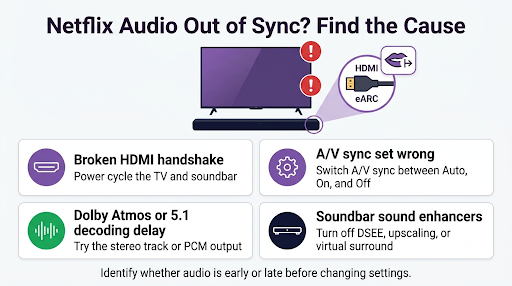
Netflix audio usually goes out of sync on a Bravia because the TV and soundbar are not agreeing on how much delay to add. With eARC, the TV sends audio to the soundbar, and both devices are supposed to share their processing times so the picture and sound line up. When that communication fails, you see lips moving before or after the words.
Here are the most common causes:
- A broken HDMI handshake: After a power outage, a firmware update, or switching inputs, the TV and soundbar can lose track of each other’s delay values.
- A/V sync set wrong for your setup: The Bravia’s A/V sync feature delays the picture to match the audio device. If it delays too much or too little, sync drifts.
- Heavy audio formats: Dolby Atmos and Dolby Digital Plus 5.1 need decoding in the soundbar. That decoding takes time, and some bars add more latency than the TV expects.
- TV-side processing: Picture modes with heavy motion processing add video delay, which can make audio feel early.
- Soundbar sound enhancers: Features like upscaling or virtual surround add audio delay on some models.
- A weak cable or the wrong port: eARC only works on the HDMI port labeled eARC/ARC, and an older cable can cause dropouts and unstable sync.
Testing by RTINGS found that over eARC, the total audio delay is the soundbar’s own latency plus the time the TV takes to pass the audio along. That explains why two good devices can still end up out of sync together. You can read more in RTINGS’ research on soundbar eARC latency.
Is the Audio Early or Late? Find Out Before You Change Settings
Check whether the sound comes before or after the lips move, because the fix depends on the direction. Pause on a close-up scene with someone talking, then play it and watch the mouth.
| What you see | What it usually means | Best first fix |
| Words arrive after the lips move (audio late) | The soundbar is adding more delay than the TV accounts for | Set A/V sync to On, lower soundbar delay, try PCM |
| Words arrive before the lips move (audio early) | The TV is delaying the picture too much, or video processing is heavy | Set A/V sync to Off, turn off motion smoothing, add soundbar delay |
| Sync is fine, then drifts after a few minutes | Unstable handshake or a format switch mid-stream | Power cycle, reseat the cable, update firmware |
| Only Atmos or 5.1 titles are off | Decoding delay in the soundbar | Switch to the stereo track or set Digital audio output to PCM |
Pro Tip! Run the same scene on YouTube or another app on the TV. If YouTube is fine and only Netflix is off, the issue is likely the audio format Netflix is sending (usually Atmos or 5.1). If every app is off, it is a TV and soundbar settings problem.
How Do You Fix Netflix Audio Delay on a Sony Bravia With an eARC Soundbar?
Work through these steps in order and test Netflix after each one. Most people fix it within the first three steps.
1. Power Cycle the TV and Soundbar the Right Way
A full power cycle resets the HDMI handshake, which clears most sudden sync problems. Turning the TV off with the remote is not enough because Bravia TVs go into standby.
- Unplug the TV and the soundbar from the wall.
- Wait 60 seconds.
- Plug the soundbar in first and turn it on.
- Plug the TV in and turn it on.
- Open Netflix and test a dialogue scene.
While you are at it, unplug the HDMI cable from the TV’s eARC port, wait a few seconds, and push it back in firmly. Sony Bravia owners often report that reseating this cable alone brings sync back.
2. Change the A/V Sync Setting on Your Bravia
A/V sync is the most important setting for this problem. Sony’s own support guide for Netflix and other built-in apps recommends changing A/V sync from Auto to Off or On.
- Press the Quick Settings button on your remote (or the Home button on older models).
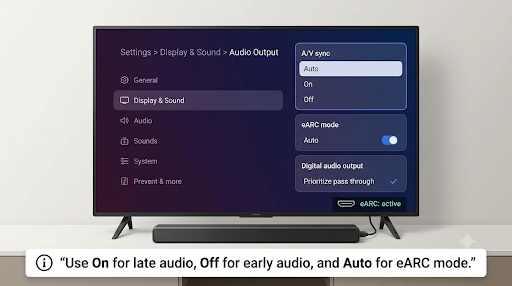
- Go to Settings → Display & Sound → Audio output → A/V sync.
- Try On first if the audio is late. Try Off if the audio is early.
- Test the same scene after each change.
On some models, you will find this under Audio output → Audio system settings instead. Menu names vary by model year, so check your TV’s Help Guide if you don’t see it. Sony lists the model-specific paths in its support article on soundbar sound out of sync with the picture.
3. Set eARC Mode to Auto
Sony recommends keeping eARC mode on Auto so the TV and soundbar can negotiate the right format and delay. If someone changed it, or it got switched during setup, sync can break.
- Go to Settings → Display & Sound → Audio output.
- Find eARC mode and set it to Auto.
- Make sure BRAVIA Sync (HDMI-CEC) is turned on under Settings → Channels & Inputs → External inputs → BRAVIA Sync settings.
Important Point to be Considered! If eARC mode is already on Auto and the delay keeps returning, you can test with eARC turned Off. Your soundbar will then fall back to regular ARC. This often stabilizes sync, but you lose lossless formats like Dolby TrueHD. Netflix streams Atmos inside Dolby Digital Plus, which regular ARC can carry on most setups, so you may not notice much difference for Netflix.
4. Change Pass Through Mode or Digital Audio Output
Changing how the TV sends audio can remove the decoding step that causes delay. Sony’s suggestion is to set Pass through mode to Auto, or set Digital audio output to Prioritize pass through. If that does not help, try the opposite and set it to PCM.
- Pass through / Auto: The soundbar decodes Dolby audio. Best quality, but some bars add delay.
- PCM: The TV decodes the audio and sends simple PCM. Usually the lowest delay, but you may lose Atmos and true 5.1 on many soundbars.
The path is usually Settings → Display & Sound → Audio output → Digital audio output or Pass through mode. Available options depend on your model.
5. Switch the Netflix Audio Track
If only some Netflix titles are out of sync, change the audio track in the Netflix app. This is a fast way to confirm the soundbar is struggling with Atmos or 5.1 decoding.
- Play the show or movie.
- Press the Down or Up arrow on the remote to show the controls.
- Select Audio & Subtitles.
- Pick the plain language track (for example, “English”) instead of “English 5.1” or “English (Dolby Atmos).”
If the stereo track is in sync, you know the problem is format-related. You can keep using stereo, or go back to Step 4 and try PCM output. Netflix’s help page on audio out of sync confirms that this is usually a device or sound equipment setting rather than a Netflix account issue.
Heavy formats cause trouble on other TVs too. If you ever see a black screen instead of a delay when starting HDR content, our guide on fixing a Netflix black screen with Dolby Vision on LG OLED TVs covers that format handshake problem.
6. Adjust the Soundbar’s AV Sync or Lip Sync Delay
Most soundbars have their own delay control. Use it to fine-tune when the TV settings get you close but not perfect.
- Sony BRAVIA Theatre bars: Open the BRAVIA Connect app and go to Settings → Sound Settings → AV Sync. Sony also suggests turning off DSEE or DSEE Ultimate on some bars, since sound upscaling can add delay.
- Sonos Arc, Beam, or Ray: Open the Sonos app, go to your room’s settings, and use the Audio Delay (lip sync) slider.
- Samsung soundbars: Press the Audio Sync button on the soundbar remote, then use the skip buttons to adjust.
- JBL, Vizio, Bose, and others: Look for “AV sync,” “lip sync,” or “audio delay” in the remote menu or app.
Keep in mind that a soundbar delay can only add delay to audio. It fixes audio that is early. If your audio is late, you need to reduce the TV’s picture processing or change A/V sync instead.
Pro Tip! A soundbar delay applies to everything, not just Netflix. If you set a large offset to fix Netflix, check a game console or Blu-ray player afterward. A fix tuned for one source can push another source out of sync.
7. Turn Off Picture Processing That Adds Video Delay
Motion smoothing and similar features make the TV take longer to process each frame, which can make audio feel early. Try these settings under Settings → Display & Sound → Picture → Motion:
- Set Motionflow or Motion clarity to Off or Standard.
- Try the Cinema or Professional picture mode.
- Avoid Game mode for Netflix testing, because it changes processing and can mask the real cause.
8. Update Firmware on the TV and Soundbar
Firmware updates often include HDMI and eARC fixes, so make sure both devices are current. On most Google TV Bravia models, go to Settings → System → About → System update. Update the soundbar through its app or menu.
Some Bravia owners have reported eARC sync problems that started right after a TV update. If yours began right after an update, a power cycle and cable reseat are the first things to try. If the issue persists, contact Sony support, since a follow-up update is often the real fix. Sony’s Netflix sound issues page is a good place to start.
9. Check the HDMI Cable and Port
Use the HDMI port marked eARC/ARC on the TV, and use a High Speed HDMI Cable with Ethernet or an Ultra High Speed HDMI cable. Older or very long cables can cause audio dropouts and unstable sync over eARC.
- On many Bravia models, the eARC port is HDMI 3, but check the label on your TV.
- Connect the cable to the soundbar’s port labeled TV (eARC/ARC), not HDMI In.
- Avoid adapters or HDMI switches between the TV and soundbar.
10. Restart Netflix or Reset the App
If the problem only happens in Netflix and the steps above did not help, force stop the app. Go to Settings → Apps → Netflix → Force stop, then Clear cache, and reopen Netflix. App-level glitches on smart TVs can show up as freezing or errors too. Our guide to the Netflix UI-113 error on Vizio SmartCast TVs shows a similar reset process on another platform.
What If Netflix Is Out of Sync Only on a Streaming Stick Plugged Into the Bravia?
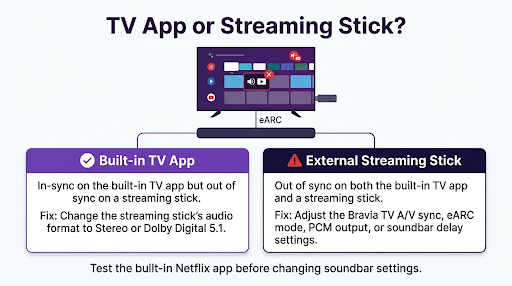
If you watch Netflix on a Fire TV Stick, Roku, or Apple TV plugged into the Bravia, the delay can come from the streaming device instead of the TV app. The audio passes from the stick to the TV and then out to the soundbar, which adds another step.
- Test the built-in Netflix app on the Bravia. If it is in sync there, focus on the streaming device’s audio settings.
- On Apple TV, Netflix suggests changing the Audio Format to Dolby Digital 5.1 under Settings → Video and Audio.
- On Fire TV, try setting Dolby Digital Plus to Off or the surround output to Stereo under Display & Sounds → Audio.
- On Roku, set Audio mode to Stereo or try Auto under Settings → Audio.
Streaming sticks run into other Netflix problems tied to their setup as well. For example, our post on fixing a Netflix black screen in 4K HDR on Roku explains how HDMI and format settings on the stick affect playback. If your Fire Stick shows a connection error instead, see our guide to Netflix error NW-2-5 on Fire Stick and IPv6.
Which Sony Bravia A/V Sync Setting Should You Use: Auto, On, or Off?
Start with Auto, because it lets the TV and soundbar share delay information over eARC. Change it only if sync is off.
| Setting | What it does | When to use it |
| Auto | The TV adjusts picture timing based on the delay the audio device reports | Default for most eARC soundbars that work properly |
| On | The TV always delays the picture to match the external audio device | Audio arrives late through the soundbar |
| Off | The TV does not delay the picture | Audio arrives early, or the TV over-corrects |
Common Mistakes That Keep the Sync Problem Coming Back
- Only turning the TV off with the remote: Standby does not reset the HDMI handshake. Unplug both devices.
- Stacking delays: Adding a big soundbar delay while A/V sync is also set to On can double-correct. Change one setting at a time.
- Testing with background music: You cannot judge lip sync without a close-up of someone talking.
- Using the wrong HDMI port: Only the eARC/ARC port sends TV audio to the soundbar.
- Leaving sound enhancers on: Upscaling and virtual surround on the soundbar can add delay you don’t expect.
Frequently Asked Questions
Why is only Netflix out of sync and not YouTube on my Sony TV?
Netflix often sends Dolby Atmos or 5.1 audio, while many YouTube videos use stereo. The soundbar takes longer to decode surround formats, so Netflix shows the delay first. Switching the Netflix track to stereo or setting the TV’s output to PCM usually confirms it.
Why does Netflix audio go out of sync after I pause or skip the intro?
Pausing, skipping, or jumping ahead can make the stream restart and renegotiate the audio format. If the TV and soundbar do not handshake cleanly, sync drifts. Backing out of the title and starting it again usually fixes it for that session. If it happens often, update firmware and reseat the cable.
Does turning off eARC fix Netflix lip sync on a Bravia?
It can. Turning eARC off makes the TV use standard ARC, which some soundbars handle with less delay. The trade-off is that you lose lossless formats from Blu-ray players and some consoles. For Netflix alone, the change in sound quality is usually small.
Can I fix audio delay with my soundbar’s app instead of the TV?
Yes, if the audio is ahead of the picture. Soundbar apps like BRAVIA Connect and Sonos can delay the audio to match. They cannot speed up late audio, so for that problem you need the TV’s A/V sync setting or PCM output.
Will a factory reset fix Netflix audio out of sync on a Sony Bravia?
A factory reset is a last resort and rarely needed for this problem. Try resetting only the sound settings first, along with a power cycle and firmware update. A full reset erases your apps, accounts, and picture settings.
Is a Sony soundbar better for syncing with a Sony Bravia TV?
Sony soundbars support extra BRAVIA Sync features and can be controlled from the TV’s menu, which makes setup easier. They can still go out of sync, though. Any good eARC soundbar can work well once A/V sync and audio output are set correctly.
Final Recommendation
Start with the simple fixes. Unplug both devices for a minute, reseat the eARC cable, and set A/V sync to On if audio is late or Off if it is early. If only Atmos or 5.1 titles are off, switch the Netflix track to stereo or set Digital audio output to PCM. Use the soundbar’s delay setting for the final fine-tuning.
If none of this works and the problem started after a firmware update, contact Sony support with your TV model, soundbar model, and whether the audio is early or late. That detail helps them find the right fix much faster.