
If Netflix keeps buffering on your Samsung Smart TV, the cause is almost always a weak or unstable connection, a cluttered Netflix app, or a TV that never fully restarts. Start by unplugging the TV and your router for a full minute, then run the Netflix network test. That alone clears up most cases.
If the spinning circle keeps coming back, this guide walks you through every fix in the right order, from 60-second resets to the Samsung-only settings most guides skip. It works for Crystal UHD, QLED, Neo QLED, OLED, and The Frame models running Tizen OS.
Quick Overview
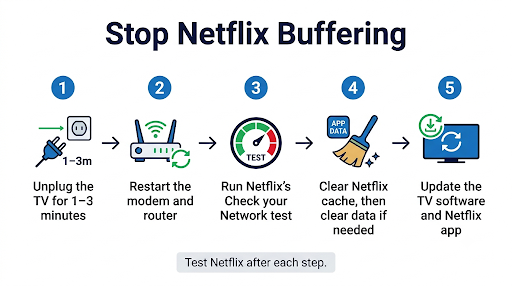
- Cold restart the TV: Unplug it for 1 to 3 minutes. Standby is not a real restart.
- Restart your modem and router: Unplug both for 30 seconds.
- Test your speed in Netflix: Get Help > Check your Network. You need about 5 Mbps for 1080p and 15 Mbps for 4K.
- Switch to 5 GHz Wi-Fi or Ethernet.
- Clear Netflix cache and data: Settings > Support > Device Care > Manage Storage > Netflix.
- Update the TV software and the Netflix app.
- Turn off Samsung Instant On (older models) and try a manual DNS.
- Reset Smart Hub (PIN is usually 0000) as a last resort before a factory reset.
Why Does Netflix Keep Buffering on My Samsung TV?
Netflix buffers when your TV can’t download video as fast as it plays. The app keeps a small buffer of upcoming video. When that buffer empties, playback pauses until it refills.
On Samsung TVs, the usual causes are:
- Weak or crowded Wi-Fi. The TV is often far from the router or stuck on the slower 2.4 GHz band.
- Not enough bandwidth. Someone else in the house is gaming, downloading, or streaming 4K at the same time.
- A TV that never truly restarts. Pressing the power button usually puts a Samsung TV in standby, so memory and network glitches carry over day to day.
- Corrupted Netflix cache. Cached data builds up over months and can slow the app down.
- Outdated Tizen firmware or Netflix app.
- Samsung Instant On or quick start settings that keep the TV in a half-asleep state on some models.
- DNS, VPN, or router issues that slow the connection to Netflix servers.
- A Netflix outage, which is rare but worth ruling out first.
Is It Really Buffering, or Something Else?
Before you start fixing, match what you see to the right problem. Many people call every playback glitch “buffering,” but the fix depends on the symptom.
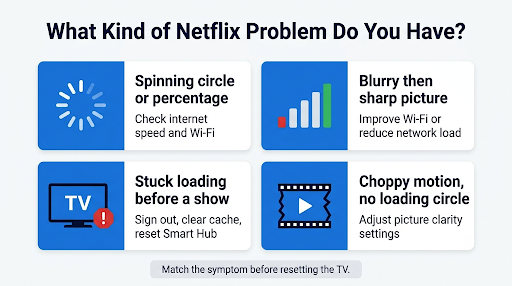
| What you see | Likely cause | Where to start |
| Spinning red circle or percentage mid-show | Slow or unstable internet | Router restart, speed test, 5 GHz or Ethernet |
| Picture turns blurry, then sharp again | Netflix lowering quality to match your speed | Improve Wi-Fi signal or reduce network load |
| Stuck at 25% or a loading screen before the show starts | App, account, or DNS problem | Sign out, clear cache, reset Smart Hub |
| Choppy or jerky motion, but no loading circle | Picture processing settings, not your internet | Adjust Picture Clarity / Auto Motion Plus |
| Buffering only on Netflix, other apps fine | Netflix app data or Netflix server routing | Clear Netflix data, reinstall, change DNS |
| Buffering on every app and every device | Your internet service or router | Restart modem, contact your ISP |
If Netflix won’t open or play at all, you’re dealing with a loading problem rather than buffering. Our guide on fixing Netflix not loading on a Samsung Smart TV covers that in detail.
Is Netflix Down Right Now?
Check this first so you don’t waste time resetting a TV that isn’t broken. Visit the official Netflix service status page on your phone. If Netflix reports an outage, just wait it out.
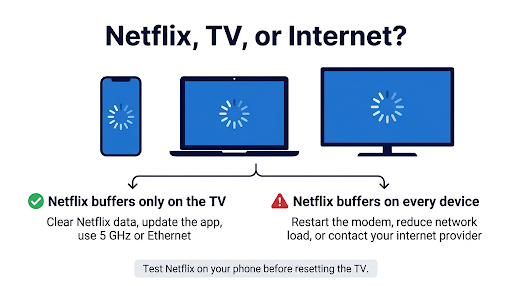
Also try Netflix on a phone or laptop using the same Wi-Fi. If it buffers there too, the problem is your network, not the TV.
How Do You Stop Netflix From Buffering on a Samsung Smart TV?
Work through these fixes in order. Test Netflix after each one. The early steps are quick and solve most cases, so don’t skip ahead to a reset.
1. Cold Restart Your Samsung TV
A cold restart clears the TV’s memory and refreshes its network connection. This is the single most effective fix, and it’s different from pressing the power button.
- Unplug the TV from the wall outlet.
- Press the power button on the TV itself once, or wait a minute. Netflix suggests leaving it unplugged for up to 3 minutes.
- Plug it back in and turn it on.
- Open Netflix and play something.
Quick remote shortcut: On most newer Samsung TVs, you can hold the power button on the remote until the TV turns off and back on with the Samsung logo. That forces a reboot without unplugging.
2. Restart Your Modem and Router
Routers slow down after days or weeks of nonstop use. A proper restart clears that out.
- Turn off the TV.
- Unplug your modem and router (if they’re separate) for at least 30 seconds.
- Plug in the modem first. Wait until its lights stop blinking.
- Plug in the router and wait for it to fully reconnect.
- Turn the TV back on and try Netflix.
3. Run the Netflix Network Test and Check Your Speed
Netflix has a built-in test that checks both your internet speed and your connection to Netflix servers.
- Open Netflix on your Samsung TV.
- Press the Back button on your remote to open the menu.
- Select Get Help, then Check your Network. If you don’t see Get Help, open Settings in the Netflix menu first.
Compare your result with the Netflix recommended internet speeds:
| Video quality | Resolution | Recommended speed |
| HD | 720p | 3 Mbps or higher |
| Full HD | 1080p | 5 Mbps or higher |
| Ultra HD | 4K | 15 Mbps or higher |
These numbers are per stream. If three people stream at once, you need roughly three times the bandwidth. Also look at consistency. A connection that swings between 50 Mbps and 2 Mbps will buffer even though the average looks fine.
You can also test the TV’s own connection in Settings > General > Network > Network Status. On 2024 and newer models, this lives under Settings > All Settings > Connection > Network.
4. Switch to 5 GHz Wi-Fi or Use an Ethernet Cable
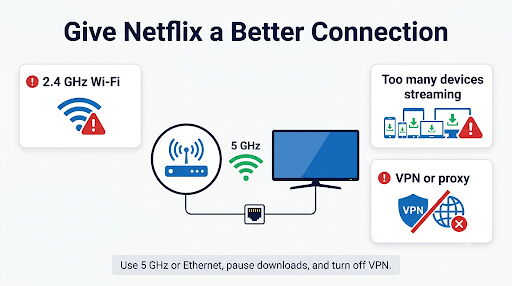
This is the fix that makes buffering go away for good in many homes. The 2.4 GHz band reaches farther but is slower and more crowded. The 5 GHz band is faster and better for streaming.
- Use Ethernet if you can. A wired connection is the most stable option for any smart TV, especially for 4K.
- Pick the 5 GHz network: Go to Settings > General (or Connection) > Network > Open Network Settings > Wireless, then choose your 5 GHz network.
- Same name for both bands? If your router uses one name for 2.4 GHz and 5 GHz, the TV may pick the slower one. Give the 5 GHz band a separate name in your router settings, such as “HomeWiFi_5G.”
- Move the router. Keep it off the floor, in an open spot, and away from microwaves, cordless phones, and thick walls. The same room as the TV is ideal.
Tip: If your TV is far from the router, a mesh Wi-Fi system or a powerline adapter often fixes buffering better than any TV setting.
5. Reduce Network Congestion
Your TV shares bandwidth with every other device in the house. During busy evening hours, that adds up fast.
- Pause big downloads, game updates, and cloud backups.
- Close streaming apps on other devices you aren’t using.
- Disconnect old devices you no longer use from your Wi-Fi.
- Turn off your VPN or proxy. VPN servers often slow Netflix down or route it through a distant server.
6. Clear the Netflix Cache and Data
Clearing the cache removes temporary files that may be corrupted. Clearing data resets the app completely, so you’ll need to sign in again.
- Press the Home button and go to Settings.
- Select Support > Device Care. Wait for the quick scan to finish.
- Choose Manage Storage.
- Highlight Netflix and select View Details.
- Select Clear Cache first and test Netflix.
- If it still buffers, return and select Clear Data, then sign back in.
Older Samsung TVs (roughly 2019 and earlier) may not have Manage Storage. On those models, reinstalling Netflix or resetting Smart Hub does the same job.
7. Update Your Samsung TV Software
Samsung’s Tizen updates often fix Wi-Fi drivers, network bugs, and app compatibility issues.
- Go to Settings > Support > Software Update.
- Select Update Now.
- Turn on Auto Update so you don’t fall behind again.
Don’t turn off the TV during an update. Test Netflix right after updating, since an update often fixes buffering on its own.
8. Update or Reinstall the Netflix App
Netflix comes preinstalled on most Samsung TVs, but it still needs updates. To update apps, go to the Apps section, open Settings (the gear icon), and turn on Auto Update, or update Netflix manually from there.
To reinstall:
- Go to Apps and open Settings (gear icon).
- Select Netflix, then choose Delete. On some models, the option is Reinstall.
- Search for Netflix in Apps and install it again.
- Sign in and test playback.
If Delete is grayed out, Netflix is a built-in app on your model. Use Clear Data or Reset Smart Hub instead.
9. Sign Out of Netflix and Sign Back In
Signing out refreshes your account data and playback settings on the TV.
- In Netflix, press Back to open the menu, then select Get Help > Sign Out.
- If you can’t find the menu, use the remote code Netflix supports on many TVs: press Up, Up, Down, Down, Left, Right, Left, Right, Up, Up, Up, Up. Then choose Sign Out, Start Over, or Deactivate.
10. Turn Off Samsung Instant On
Instant On helps the TV start faster by keeping parts of the system running in standby. On some Samsung models, it stops apps like Netflix from loading fresh, which leads to buffering, freezing, or a stuck loading screen.
- Older models (around 2015 to 2018): Settings > General > Samsung Instant On > Off.
- Some models: Settings > System > General > Samsung Instant On.
- Newer models: This option may not exist. In that case, a regular cold restart (Fix 1) gives you the same benefit.
After turning it off, unplug the TV for a minute, then open Netflix again.
11. Change the DNS Setting on Your Samsung TV
Slow DNS servers from your internet provider can delay your connection to Netflix. Switching to a public DNS sometimes helps when Netflix buffers but other apps don’t.
- Go to Settings > General (or Connection) > Network > Network Status.
- Select IP Settings.
- Change DNS Setting to Enter Manually.
- Enter 8.8.8.8 (Google) or 1.1.1.1 (Cloudflare).
- Select OK, restart the TV, and test Netflix.
Note: This doesn’t help every network. If buffering gets worse, set DNS back to Obtain Automatically.
Some users also report better results after turning off IPv6 under Settings > General > Network > Expert Settings. Many newer models don’t show this option, and that’s normal.
12. Reset the Network Settings
If your TV’s network settings got messed up after an update or router change, a network reset gives you a clean start. Go to Settings > General (or Connection) > Network > Reset Network, confirm, then reconnect to your Wi-Fi. Have your Wi-Fi password ready.
13. Lower the Netflix Playback Quality
If your internet just isn’t fast enough, lowering the quality stops the pauses. A slightly softer picture beats a spinning circle every few minutes.
- On a phone or computer, sign in to your account at netflix.com.
- Open Profiles, choose the profile you use on the TV, and select Playback settings.
- Change Data usage per screen from Auto or High to Medium.
- Save, then restart Netflix on the TV.
Remember to switch it back to Auto once you fix your network.
14. Reset Smart Hub (Last Resort Before Factory Reset)
Resetting Smart Hub clears all app data, accounts, and Smart Hub settings. It fixes deeper app problems that a cache clear can’t touch.
- Go to Settings > Support > Device Care > Self Diagnosis.
- Select Reset Smart Hub.
- Enter your PIN. The default is usually 0000.
- Wait for the reset, then reinstall your apps and sign back in.
Before you reset: Make sure you know your Netflix email and password, plus the logins for any other apps you use.
If nothing above works, a full factory reset is the final step: Settings > General > Reset (on newer models, Settings > All Settings > General & Privacy > Reset). This erases everything on the TV, so use it only when every other fix has failed.
Why Does Netflix Buffer When My Internet Is Fine?
A fast speed test doesn’t always mean a good streaming connection. Here’s what usually causes buffering on a “fast” network:
- The speed test ran on your phone, not the TV. Your TV may sit farther from the router with a much weaker signal. Always test inside the Netflix app on the TV.
- Your connection is unstable. Short drops cause buffering even when the average speed is high.
- The TV is on 2.4 GHz. Even with fast internet, a crowded 2.4 GHz band can’t keep up with 4K.
- Peak-hour slowdowns. Some providers slow down in the evening when everyone is online.
- The Netflix app itself. If only Netflix buffers while YouTube and Prime Video play fine, clear Netflix data or reinstall it.
Why Does Netflix Look Choppy but Not Show a Loading Circle?
If the picture stutters or jerks during motion but never shows a loading circle, it’s usually not a network problem. It’s often caused by Samsung’s motion processing settings.
Go to Settings > Picture > Expert Settings > Picture Clarity Settings (called Auto Motion Plus on older models). Try setting it to Off or Custom with lower Judder Reduction, and see if motion looks smoother. Switching the picture mode to Movie or Filmmaker Mode also helps on many models.
What If Netflix Buffers and Then Shows an Error Code?
Constant buffering sometimes ends in a Netflix error message. The code tells you exactly where the problem is.
- NW-2-5: A network connectivity problem between your TV and Netflix. Follow our guide to fix Netflix error NW-2-5 on Samsung TV.
- UI-800-3: Stored Netflix data on the TV needs to be refreshed. See how to resolve Netflix error UI-800-3 on a Samsung Smart TV.
- Screen goes black after buffering: This points to an app or HDMI/picture issue. Our Netflix black screen fix for Samsung TV walks you through it.
Common Mistakes That Keep Netflix Buffering
- Turning the TV off with the remote and calling it a restart. That’s standby. Unplug it.
- Testing speed on your phone next to the router. Test on the TV, where the signal actually matters.
- Jumping straight to a factory reset. You’ll lose every app and setting when a cache clear may have fixed it.
- Leaving a VPN on. VPNs are a common, overlooked cause of slow Netflix playback.
- Blaming the TV when every device buffers. If your phone and laptop buffer too, call your internet provider.
When Should You Contact Your ISP or Samsung Support?
Contact your internet provider if buffering happens on every device, your speed test is far below your plan, or the problem shows up mostly in the evening. Ask them to check for outages, test your line, and look at your modem.
Contact Samsung support if Netflix buffers only on your Samsung TV after you’ve tried Ethernet, updated the software, and reset Smart Hub. Note your model number (Settings > Support > About This TV) before you call. If you’re still under warranty, a Wi-Fi module problem may be covered.
Frequently Asked Questions
Why does Netflix keep buffering on my Samsung TV but not on my phone?
Your phone usually sits closer to the router and may use a stronger Wi-Fi band. The TV might be on 2.4 GHz, far from the router, or carrying old app data. Move the TV to 5 GHz or Ethernet and clear the Netflix cache on the TV.
Why does Netflix buffer more at night on my Samsung TV?
Evening is peak internet time. Your neighbors and household are all online, and some providers slow down under heavy demand. Lowering playback quality to Medium or using a wired connection helps during those hours.
Does a Samsung TV need a factory reset to fix Netflix buffering?
Rarely. Most buffering is fixed by a cold restart, a router restart, or clearing Netflix data. A factory reset should be the very last step because it erases all apps, accounts, and settings.
Why does Netflix 4K buffer on my Samsung QLED or Neo QLED TV?
4K needs at least 15 Mbps per stream and a very steady connection. Large QLED and Neo QLED TVs often sit on wall mounts far from the router, which weakens Wi-Fi. An Ethernet cable is the most reliable fix for smooth 4K and HDR playback.
Will resetting Smart Hub delete my Netflix account?
No. Your Netflix account, profiles, and watch history are stored online. Resetting Smart Hub only signs you out on the TV and removes the app data, so you’ll just need to sign back in.
Why does Netflix buffer on my older Samsung Smart TV?
Older Samsung TVs have slower processors, less memory, and may stop getting software updates. Turning off Instant On and resetting Smart Hub often helps. If the TV no longer receives updates, a streaming stick plugged into HDMI is a cheap way to get smooth Netflix again.
Can a streaming device fix Netflix buffering on a Samsung TV?
Yes, if the problem is the TV’s Wi-Fi hardware or an aging processor. A newer streaming stick with strong Wi-Fi, or one with an Ethernet adapter, can stream better than the TV’s built-in app. It won’t help if your home internet itself is slow.
Final Recommendation
Start simple. Unplug your Samsung TV and router, then run the Netflix network test. If your speed is low or unstable, move the TV to 5 GHz Wi-Fi or plug in an Ethernet cable, since that’s the most lasting fix for buffering.
If your connection looks healthy but Netflix still buffers, clear the Netflix cache and data, update the TV software, and turn off Instant On if your model has it. Save Reset Smart Hub and factory reset for last. And if every device in your home buffers, skip the TV fixes and call your internet provider.