
If Netflix says your Roku isn’t part of the Netflix Household even though it’s on your home Wi-Fi, Netflix doesn’t recognize your current internet connection as your household location. The usual fix is to open Netflix on the Roku, go to Get Help > Manage Netflix Household > Update Netflix Household, and confirm the email or text link within 15 minutes.
Most of the time the cause is a changed public IP address, a second network in the house, a VPN, or a household that was set from another location. This guide covers each of those, what to do when the verification link fails, and when to stop troubleshooting and contact Netflix.
Quick Overview
| What’s likely happening | What to do |
| Your household is still tied to an old connection (new router, new ISP, or a move) | Update Netflix Household from the Roku |
| The Roku is on a different network than your main TV (guest Wi-Fi, second router, hotspot) | Move the Roku to the main home network, then update the household |
| A VPN is running on your router or phone | Turn off the VPN and try again |
| Old devices are still signed in from other places | Sign out of unknown devices, then update the household |
| The verification link or code expired | Request a new one and use only the newest message within 15 minutes |
| Netflix app on Roku is acting up | Remove the app, restart the Roku, and reinstall it |
What Does “This TV Isn’t Part of the Netflix Household” Mean on Roku?
It means Netflix couldn’t link your Roku to the internet connection it has saved as your Netflix Household. Netflix shows slightly different wording depending on the device, such as “Your TV isn’t part of the Netflix Household for this account” or “This device isn’t part of your Netflix Household.”
A Netflix Household is the group of devices connected to the internet at the main place you watch Netflix. Any device that signs in on the same internet connection as your household TV should be added automatically. When the Roku shows this message at home, Netflix thinks the Roku is somewhere else, even if you’re sitting on your own couch.
On a Roku, you’ll usually see a few choices on the blocked screen, such as Update Netflix Household, I’m Traveling, or an option to verify the TV. Netflix explains each option on its official page about the “Your TV isn’t part of the Netflix Household” message.
How Does Netflix Detect Your Netflix Household?
Netflix uses information such as IP addresses, device IDs, and account activity from devices signed in to your account. It does not rely on your street address or your Wi-Fi password.
The IP address is the big one. Your Roku shares the same public IP address as everything else on your home connection. If that public IP changes, or the Roku reaches the internet through a different connection, Netflix may treat the Roku as an outside device.
Netflix also says that if you have multiple Wi-Fi networks, it may only associate one of them with your Netflix Household. So a house with two internet connections can trigger the error even when every network is “home Wi-Fi” to you.
Why Does Netflix Block My Roku Even on Home Wi-Fi?
Netflix blocks a Roku on home Wi-Fi when the connection the Roku uses doesn’t match what Netflix has saved for your household. Here are the most common reasons, from most to least likely.
Your Public IP Address Changed
Many U.S. internet providers change your public IP address from time to time. It can also change after you replace the router or modem, switch providers, or after a long outage. Netflix may then stop recognizing your Roku until you update the household again.
The Roku Is on a Different Network
Some homes have more than one internet connection without realizing it. Common examples:
- A guest network on an ISP gateway that routes traffic separately
- A second router or a separate internet line in a basement, garage, or home office
- A phone hotspot or travel router that the Roku joined at some point and still remembers
- A 5G or LTE home internet service used as a backup, which can change your public IP often
If your main TV (or the TV that set the household) is on one connection and the Roku is on another, Netflix sees two locations.
A VPN Is Hiding Your Home IP
Roku devices don’t run VPN apps, but a VPN set up on your router will change the IP address that Netflix sees for every device in the house. A VPN or private relay feature on your phone can also break the phone check-in step when Netflix asks you to verify the TV.
The Household Was Set From Another Location
If someone signed in on a TV at another home, a vacation rental, or a hotel and updated the household there, your Roku at home is now the “outside” device. This often happens on shared family accounts.
Old Devices Are Still Signed In
Netflix says that if the update steps don’t work, another device connected to your account may be causing the problem. A TV you signed in to at a hotel months ago can still be active on your account.
Important Point to be Considered! Netflix Household rules apply to TVs and TV streaming devices like Roku. If you only watch on a phone or computer and don’t use a TV, Netflix says you don’t need to set a Netflix Household at all.
How Do You Fix the Netflix Household Error on Roku?
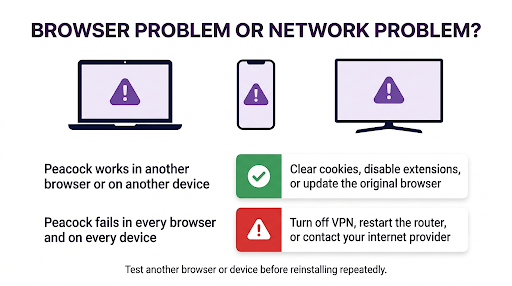
Start by confirming the Roku is on your main home network, then update the Netflix Household from the Roku itself. Work through the fixes below in order and test Netflix after each one.
Fix 1: Confirm Your Roku Is on the Main Home Network
Before you update anything, make sure the Roku is connected to the same network your other home devices use.
- Press Home on your Roku remote.
- Go to Settings > Network > About and check the network name and connection type.
- If it’s the wrong network, go to Settings > Network > Set up connection, choose Wireless or Wired, and connect to your main network.
- Go to Settings > Network > Check connection to confirm the Roku can reach the internet.
Pro Tip! If your Roku or Roku TV has an Ethernet port, a wired connection to your main router removes any doubt about which network it’s on.
Fix 2: Update Your Netflix Household From the Roku
This is the official fix and it solves the error in most homes. Netflix says the process takes about 8 minutes. You’ll need access to the account owner’s email or phone number.
- Open Netflix on your Roku.
- Select Update Netflix Household from the error screen. If you’re already on the Netflix home screen, press Back or left on the remote to open the menu, then select Get Help or Settings > Manage Netflix Household.
- Select Update Netflix Household.
- Choose Send Email. If the account has no email on file, choose Send Text.
- Open the newest message and select Yes, This Was Me, then Confirm Update.
- Wait for the Roku screen to refresh, then select Continue to Netflix if you see it.
The verification link expires after 15 minutes. You can find the same steps on Netflix’s guide to setting or updating a Netflix Household.
Important Point to be Considered! Updating the household from the Roku makes your current connection the household. If your main TV is at a different address, that TV may then be the one that gets blocked. Only update from the place you actually live and watch most.
Fix 3: Verify the Roku With Your Phone
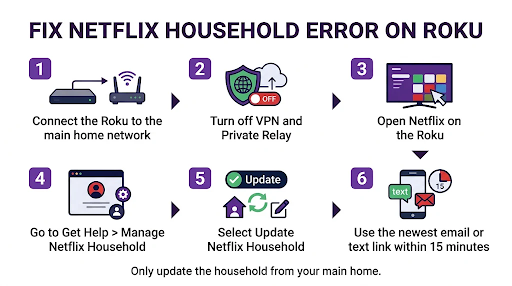
If the update keeps failing, Netflix offers a phone check-in on many TVs. Your phone must be connected to the same home Wi-Fi as the Roku, not cellular data.
- On the Roku error screen, choose Update Netflix Household, then Troubleshoot This TV if it appears.
- Scan the QR code on the TV with your phone’s camera. Allow camera access if asked.
- On your phone, tap Next, then Get Code to create a new QR code on the TV.
- Scan the new code and select Start Watching.
If you don’t see a QR code, press Back on the remote from the Netflix home screen, go to Get Help, and look for Get QR code.
Fix 4: Turn Off VPNs and IP-Masking Features
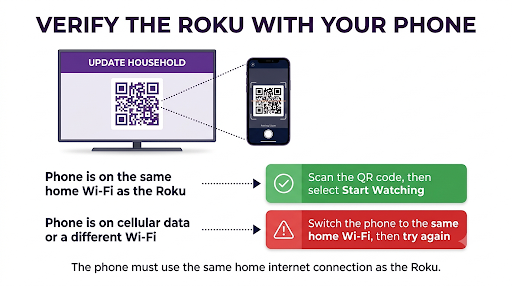
Turn off any VPN running on your router, and pause VPN apps on the phone you’re using to verify. On an iPhone, iCloud Private Relay can also route traffic away from your home IP. If you’ve had other Netflix issues tied to that setting, our guide on Netflix downloads stuck on iPhone because of Private Relay shows where to find and disable it.
After the VPN is off, repeat Fix 2 so Netflix saves your real home IP address.
Fix 5: Sign Out of Devices You Don’t Recognize
Leftover sessions from other places can keep the household tied to the wrong location.
- On a phone or computer browser, go to netflix.com/manageaccountaccess.
- Sign out of devices you don’t recognize, such as hotel TVs or old streaming sticks.
- If you can’t tell which devices are which, choose Sign out of All Devices.
- Sign back in on your Roku and update the household again.
Signing out of all devices means every phone, tablet, and TV on the account must sign in again. Do it only when targeted sign-outs don’t help.
Fix 6: Restart Your Router and Roku the Right Way
A clean restart can refresh your connection. Roku recommends unplugging the modem, router, and Roku for about 15 seconds, then plugging in the modem first, the router second, and the Roku last.
On a Roku TV, pressing the power button on the remote doesn’t fully restart the system. Use Settings > System > Power > System restart instead. On a Roku streaming stick or player without a Power menu, use Settings > System > System restart. Roku explains both methods in its guide to doing a system restart on a Roku device.
Smart TVs from other brands have the same “not really off” behavior. If you also stream Netflix on an LG TV, our post on Netflix crashing on LG TVs with Quick Start+ explains why a fast-start feature can keep old app data in memory.
Important Point to be Considered! A router restart can give you a new public IP address. If the error shows up right after a restart, that’s a sign your IP changed, and you should run Fix 2 again.
Fix 7: Update, Remove, and Reinstall the Netflix App
If the household is set correctly but the Roku still shows the error, the Netflix app may be holding onto bad data.
- Go to Settings > System > System update > Check now and install any update.
- On the Roku home screen, highlight Netflix, press the * (star) button, and choose Remove if your Roku offers that option.
- Restart the Roku using System restart. Don’t skip this step, or the reinstall may not be clean.
- Add Netflix again from the Roku Channel Store, sign in, and test playback.
What If the Netflix Verification Email or Text Doesn’t Work?
If the link fails, it has usually expired, been replaced by a newer one, or gone to an email the account owner doesn’t check. Here’s how to handle each case.
- The email never arrived: Check spam, junk, and promotions folders, then select Resend Email or Send Again on the Roku.
- The link says it expired: Links and codes last 15 minutes. Request a new one and use it right away.
- You requested more than one message: Open only the newest one. An older link may stop working after you request another.
- The code didn’t work: Enter it again carefully. Netflix may block the device for 24 hours after several incorrect attempts.
- You don’t have access to the account email: Ask the account owner to approve it, or update the contact email in account settings. Changing it affects everyone on the account.
Pro Tip! If the account owner lives with you but rarely checks email, have them open the inbox on their phone before you start. The 15-minute window goes fast.
What If “Manage Netflix Household” Is Missing on Roku?
If you don’t see Manage Netflix Household in the Netflix menu, Netflix says you’ll need to use a different TV device to update the household. This can happen on older Roku models or when the account has an issue, like an invalid email, that Netflix asks you to fix first.
Try these steps:
- Check for a Roku system update and update the Netflix app.
- Fix any account issue shown on screen first.
- Update the household from another TV in your home, such as a smart TV, game console, or another streaming device on the same network.
- Once the household is set, open Netflix on the Roku again while it’s on the same connection.
Should You Use “I’m Traveling” When You’re at Home?
No, not as a long-term fix. The “I’m Traveling” option on TVs and “Watch Temporarily” on phones and computers give you temporary access with a 4-digit code that expires after 15 minutes.
Netflix limits how many temporary codes a device can request. Once you hit the limit, the I’m Traveling option disappears and you’ll be asked to try again later. If you use it at home every time, you’ll eventually be locked out again. Use it only when you’re truly away, and fix the household with the steps above when you’re home.
Pro Tip! Netflix recommends opening the Netflix app on your home Wi-Fi at least once a month to avoid repeated interruptions while traveling. Make sure you’re using a non-Kids profile when you request a travel code.
Can You Add a Roku on a Different Wi-Fi to Your Netflix Household?
No. A Netflix Household is one location, so a Roku at a second home, a dorm, or a relative’s house can’t simply be added to it. If you move the Roku to that place, it will show the household error there.
Your official options are:
- Update the household if you’ve permanently moved and the new place is now where you watch most.
- Add an extra member on a supported plan if someone in another home needs their own access. The extra member gets their own profile and login, and it costs a monthly fee. Check your Account page for current pricing and availability.
- Create a separate Netflix account for the other home.
Be careful with “bypass” tips you see online. Using a VPN to fake a location usually makes the household error worse, and it goes against how Netflix intends accounts to be shared.
Which Common Mistakes Keep the Error Coming Back?
The error often returns because of a small detail that gets missed. Watch out for these:
- Updating the household from the wrong place. One update at a vacation home moves the household there.
- Verifying with a phone on cellular data. The phone must be on the same home Wi-Fi as the Roku.
- Leaving a router VPN on. Every device in the house will look like it’s somewhere else.
- Clicking an old verification link. Always use the newest message.
- Turning the Roku TV off and on instead of a system restart. That only puts the TV in standby.
- Using a Kids profile. Temporary access codes need a non-Kids profile.
Is It a Household Problem or a Roku Connection Problem?
If you see the household message, it’s a household problem. If Netflix loads but buffers, freezes, or crashes, it’s a connection or app problem instead, and updating the household won’t help.
A simple test helps here. Open YouTube or another app on the same Roku. If other apps play fine but Netflix struggles, the issue is specific to Netflix. We’ve covered a similar case on another platform in our guide on Netflix buffering on Fire Stick while other apps work, and many of the same network checks apply to Roku.
When Should You Contact Netflix Support?
Contact Netflix if you’ve updated the household, signed out of unknown devices, turned off any VPN, and the Roku still shows the error on your main connection. At that point, the problem is likely on Netflix’s side or tied to your account, and support can check it for you.
Have these details ready:
- Your Roku model and software version (from Settings > System > About)
- Your internet provider and whether you use a mesh system, second router, or 5G home internet
- Whether the verification email arrives and what happens when you confirm it
- The exact wording of the error on screen
You can reach them directly from the app. Our guide on how to contact Netflix customer service from the Netflix app walks through the chat and call options.
Frequently Asked Questions
Why does Netflix keep saying my Roku isn’t part of my household every few weeks?
A repeating error usually means your public IP address keeps changing. This is common with 5G or LTE home internet, some cable providers, and frequent router restarts. Updating the household each time works, but if it happens often, ask your ISP whether your IP address changes regularly and contact Netflix with that detail.
Can I use Netflix on two Rokus in the same house?
Yes. Any Roku on the same internet connection as your Netflix Household is part of the household. How many can stream at the same time depends on your plan, not the household setting.
Does Netflix use GPS or my address to set the household?
No. Netflix bases the household on signals like IP addresses, device IDs, and account activity. That’s why a change in your internet connection matters more than where the TV physically sits.
Will a wired Ethernet connection stop the Netflix household error?
Not on its own. Ethernet helps only if it puts the Roku on the same internet connection as your household. A wired Roku can still get the error if your public IP changed or a router VPN is active.
Can I fix the Netflix household error without the account owner?
Usually not. The verification link or code goes to the account owner’s email or phone. If you aren’t the owner, ask them to approve the request, or create your own Netflix account.
Does a mesh Wi-Fi system cause the Netflix household error?
A standard mesh system that uses one internet connection should not, because every node shares the same public IP. It can cause trouble if one node is connected to a different internet line, or if the Roku joined a separate guest network that routes traffic differently.
Final Recommendation
If your Roku shows the Netflix Household error at home, check that it’s on your main network, turn off any VPN, and update the Netflix Household from the Roku right away. That fixes most cases in under 10 minutes. If the error comes back, clear out old signed-in devices and do a full Roku system restart. If none of that works on your main connection, contact Netflix support with your Roku model and internet setup so they can look at your account directly.