

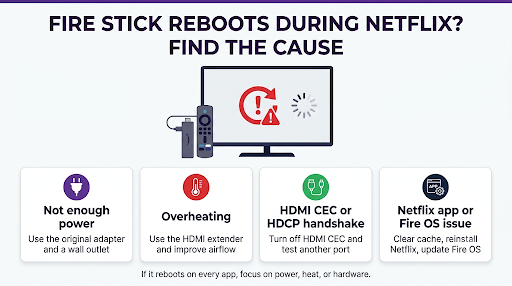
If your Fire Stick randomly reboots to the Amazon or Fire TV logo while you’re watching Netflix, the cause is usually not enough power, overheating, an HDMI handshake problem, or a glitch in the Netflix app or Fire OS. Netflix playback works the Stick harder than browsing menus, so a weak power supply or a hot device often fails right in the middle of a show.
The good news is that most people fix this in a few minutes without buying anything new. This guide walks you through the fixes in the right order, from the most common cause to the least, so you don’t waste time on a factory reset you didn’t need.
Quick Overview
- Power it from the wall: Plug the Fire Stick into a wall outlet with the original Amazon adapter and cable, not the TV’s USB port.
- Cool it down: Unplug it for a minute, then use the HDMI extender so it isn’t pressed against the hot back of the TV.
- Turn off HDMI CEC: Go to Settings > Display & Sounds > HDMI CEC Device Control > Off.
- Reset the Netflix app: Force stop, clear cache, clear data, or reinstall Netflix.
- Update Fire OS: Settings > My Fire TV > About > Check for Updates.
- Factory reset as a last resort, then contact Amazon if it still reboots.
Why Does My Fire Stick Reboot to the Amazon Logo Only When I Watch Netflix?
It happens during Netflix because streaming video is one of the heaviest jobs the Fire Stick does. Decoding HD or 4K video, keeping a steady Wi-Fi connection, and sending a protected signal over HDMI all at once raises power draw and heat. If any part of that chain is weak, the Stick crashes and restarts, and you see the Amazon logo or the Fire TV boot animation.
Here are the most common causes, ranked from most to least likely:
| Cause | Typical sign | How likely |
| Not enough power (TV USB port, weak or third-party adapter, worn cable) | Reboots after a few minutes of playback, sometimes a “low power” warning | Very common |
| Overheating | Reboots get worse during long shows or binge sessions; the Stick feels hot | Common |
| HDMI CEC or HDCP handshake trouble | Reboots when playback starts, when the TV changes resolution, or with a soundbar or receiver connected | Common |
| Corrupted Netflix app data or very low storage | Only Netflix triggers it; other apps play fine | Common |
| Fire OS bug or a half-finished update | Started right after an update | Occasional |
| Failing hardware | Reboots on every app, on every TV, with every power source | Less common |
Is It a Netflix Problem or a Fire Stick Problem?
Play something on another app, such as Prime Video or YouTube, for 20 to 30 minutes. If the Stick reboots there too, the problem is the device, power, heat, or HDMI connection. If only Netflix causes the reboot, focus on the Netflix app fixes further down.
This one test saves a lot of time. A crash that only happens in Netflix almost never needs a factory reset. A crash that happens everywhere almost never gets fixed by reinstalling Netflix.
Important Point to be Considered! A reboot and a freeze are different problems. If Netflix freezes or keeps loading but the Stick never restarts, that points to your network or the app, not power. If your issue is constant buffering while other apps stream fine, see our guide on why Netflix buffers on Fire Stick when other apps work.
How Do I Stop My Fire Stick From Restarting During Netflix?
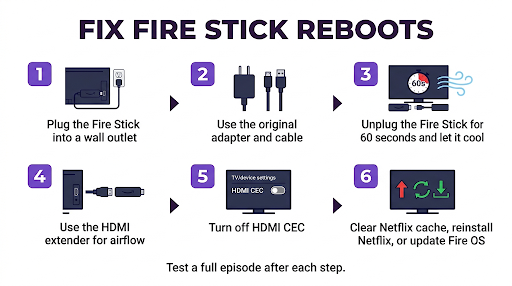
Start with power, then heat, then HDMI settings, then the Netflix app, then Fire OS. Try Netflix again after each step so you know which one fixed it.
1. Plug the Fire Stick Into a Wall Outlet, Not the TV’s USB Port
This is the most common fix. Many TV USB ports can’t deliver steady power, and the Stick may run fine on the home screen but crash once Netflix starts streaming. Amazon recommends using the power adapter and cable that came in the box and plugging the adapter into a wall outlet.
- Unplug the USB cable from your TV’s USB port.
- Connect it to the original Amazon power adapter.
- Plug the adapter directly into a wall outlet, not a cheap power strip or extension cord.
- Make sure the cable is pushed fully into the Stick. A loose micro-USB or USB-C connection can cut power for a split second and cause a reboot.
If you lost the original adapter, use a quality replacement. Netflix’s own Netflix crashes or closes help page says the Fire TV Stick needs a power supply of at least 2.1 amps. Swap the cable too if it’s bent, frayed, or old, since worn cables are a frequent hidden cause.
Pro Tip! If you ever see a “low power” or “insufficient power” message on screen, you can stop guessing. Power is your problem, and the steps above are your fix.
2. Power Cycle the Fire Stick and Let It Cool Down
A full power cycle clears temporary glitches that a menu restart sometimes doesn’t.
- Unplug the Fire Stick from power and pull it out of the HDMI port.
- Wait 60 seconds. If the Stick feels hot, give it 10 to 15 minutes to cool.
- Plug it back into HDMI and power, then try Netflix again.
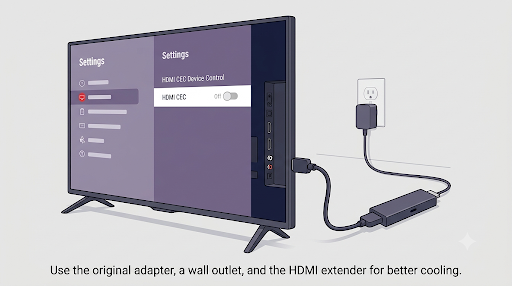
If the reboots happen mostly during long binge sessions, heat is a likely trigger. Use the HDMI extender that came with your Fire Stick so the device hangs away from the back of the TV, where heat builds up. Don’t tuck it inside a closed cabinet or behind a wall-mounted TV with no airflow.
3. Turn Off HDMI CEC on Your Fire Stick
Netflix specifically recommends disabling HDMI CEC on Fire TV when the app keeps crashing. CEC lets your TV, soundbar, and Fire Stick control each other, but a buggy CEC handshake can knock the Stick offline during playback.
- From the Fire TV home screen, open Settings.
- Select Display & Sounds.
- Scroll to HDMI CEC Device Control and set it to Off.
- Try Netflix again.
You’ll lose the ability to turn the TV on with the Fire TV remote, but you can switch CEC back on later if it wasn’t the cause.
4. Check Your HDMI Port, Cables, and Connected Devices
When Netflix starts a show, the Fire Stick and TV renegotiate the video signal and HDCP copy protection. A bad port or a device in the middle can break that handshake.
- Move the Fire Stick to a different HDMI port on your TV.
- Plug it straight into the TV instead of through an AV receiver, soundbar, or HDMI switch, just for testing.
- Unplug other HDMI and USB devices from the TV to rule out interference.
- Make sure your TV or monitor supports HDCP. Older monitors and some cheap HDMI adapters don’t.
On 4K Fire TV models, you can also test by turning off Match Original Frame Rate under Settings > Display & Sounds > Display. That setting switches the TV’s display mode when a show starts, which is exactly the moment many reboots happen. If this setting isn’t on your menu, your model doesn’t have it.
5. Force Stop and Clear the Netflix Cache and Data
If only Netflix causes the reboot, corrupted app data is a strong suspect. Clearing it resets Netflix without touching your other apps.